Category: WooCommerce Tutorials

  • How To Setup Different WooCommerce Shipping Rates By Country

    How To Setup Different WooCommerce Shipping Rates By Country

    It is not uncommon to sell internationally. The problem arises when you need to handle shipping to different countries. For example, your store is located in the US. Your customers are in the US, the UK, Australia and Vietnam. You want to setup the shipping fee as following:

    1. For customers in the US, the shipping cost would be flat $5
    2. For customers in the UK, the shipping cost would be flat $15
    3. For customers in Australia, the shipping cost would be flat $10
    4. For customers in Vietnam, the shipping cost would be flat $8

    Let’s learn how to setup your shipping method to achieve the structure above.

    How To Setup Different WooCommerce Shipping Rates By Country

    Here are the steps we are going to do:

    1. Add different shipping zones for each country
    2. Add flat rate shipping for each shipping zone

    There are only two steps. It’s just simple like that.

    Add different shipping zone for each country

    Based on the shipping structure mentioned at the beginning of the post, we are going to need 4 shipping zones for each zone, we need a flat rate shipping fee. Let’s learn how to setup one shipping zone and fee. You can do exactly the same for other zones.

    First, go to WooCommerce->Settings->Shipping and click on Add shipping zone:
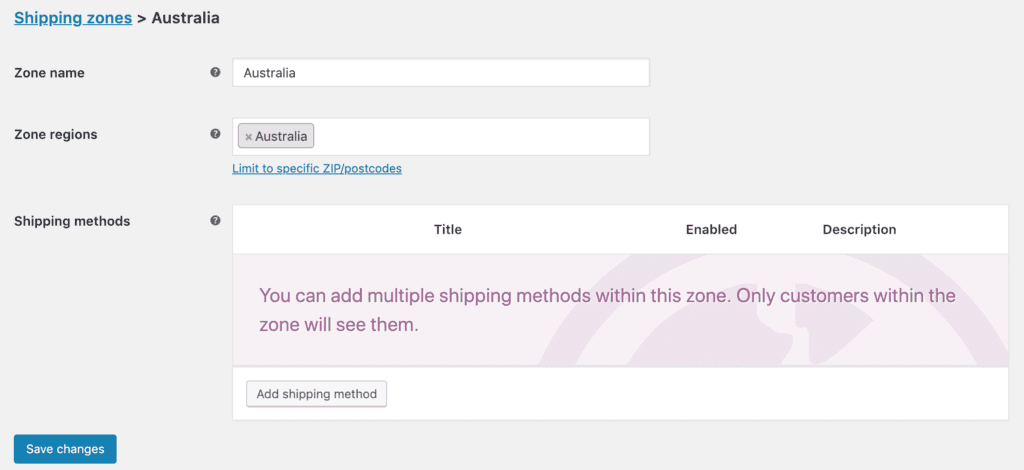
    add-shipping-zone-woocommerce

    Add flat rate shipping for each shipping zone

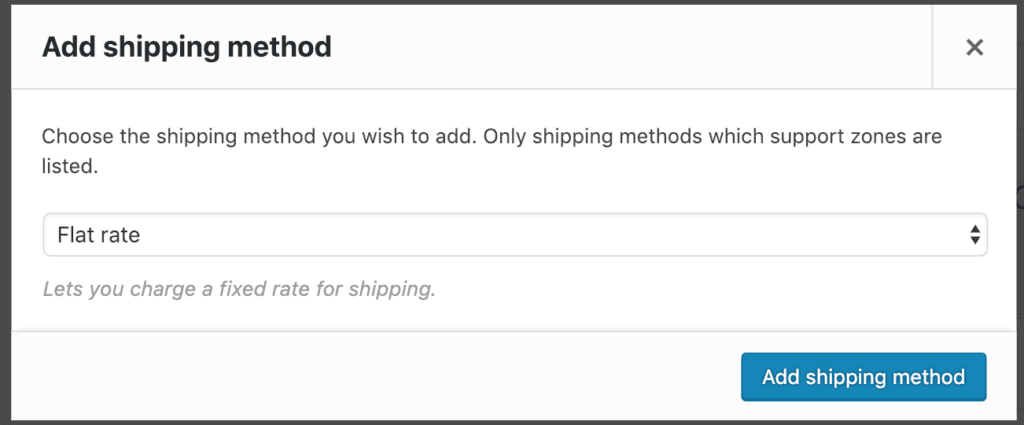
    Next, click on Add shipping method:
    add flat rate shipping method

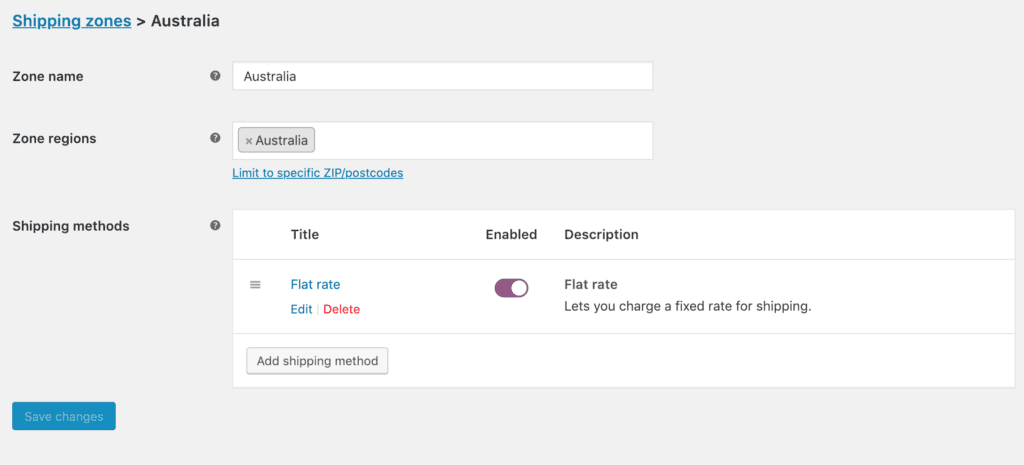
    select Flat rate and then click on Add shipping method.

    Then we have something like this:
    woocommerce shipping zone flat rate

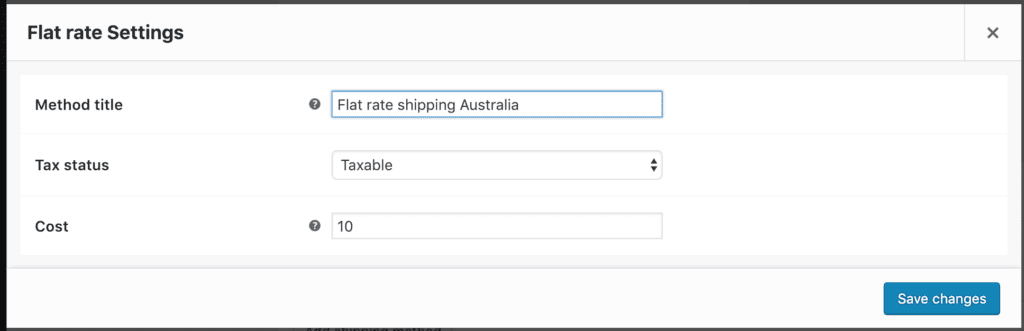
    Next, we are going to setup flat rate fee for the zone. Let’s click on the Edit link below the Flat rate title:
    setup flat rate shipping fee for zone

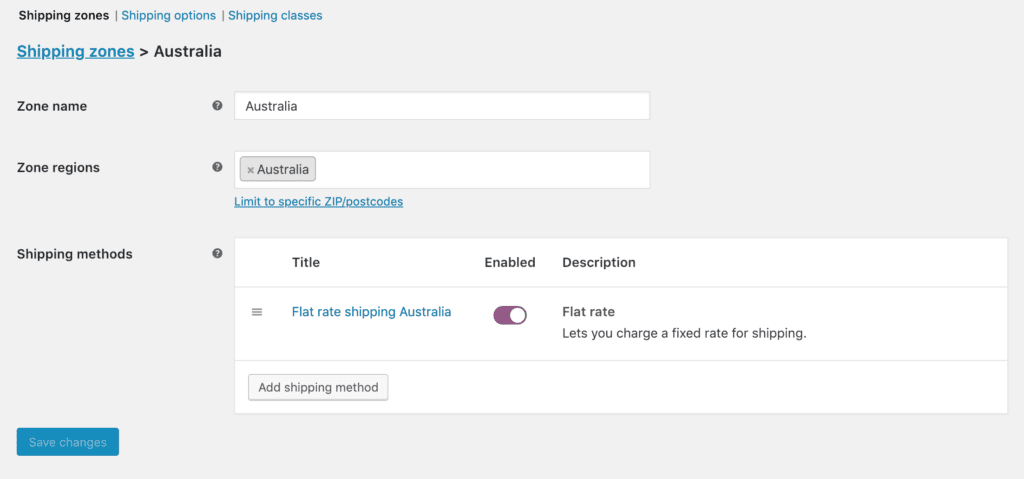
    As discussed above, the shipping rate for Australia is $10. You can set the method title to anything you like. Click on Save changes:
    How To Setup Different WooCommerce Shipping Rates By Country 1

    As you can see, the Save changes button is inactive. That means WooCommerce has saved the settings for us. If you see the button is active (text color is white), just click on it to save the settings.

    Now, if you go to WooCommerce->Settings->Shipping, you’ll see the shipping zones you created:
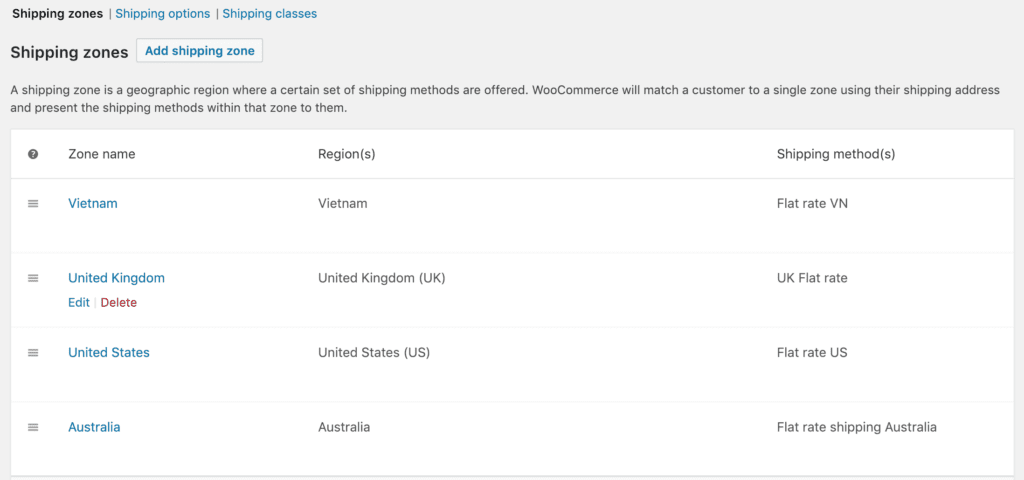
    all shipping zones in woocommerce

    Test the shipping cost for different countries

    Now, let’s make a test purchase. I’m going to order some pairs of shoes on the store.
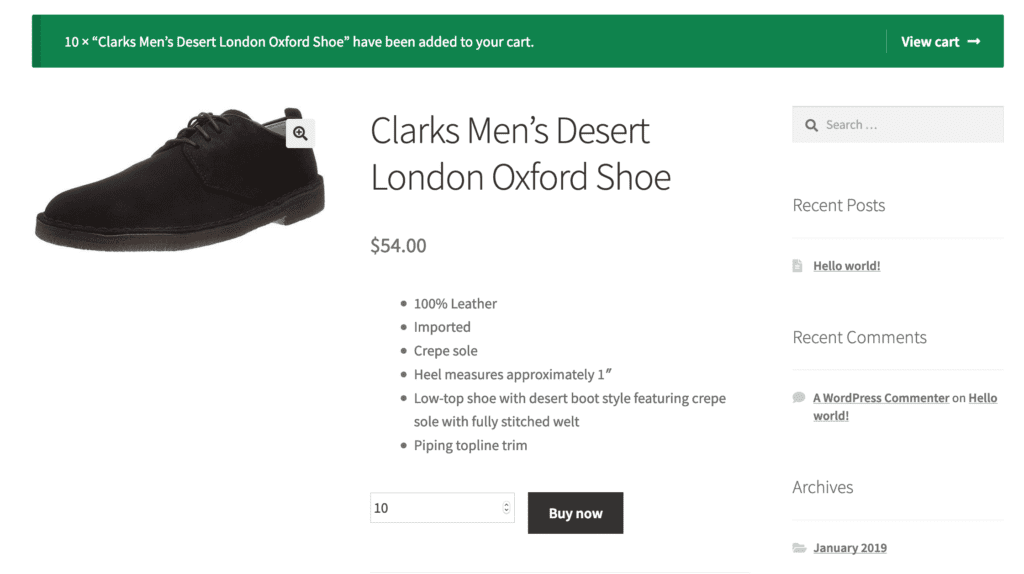
    adding item to cart

    In this example, I ordered 10 pairs. Let’s go to cart:
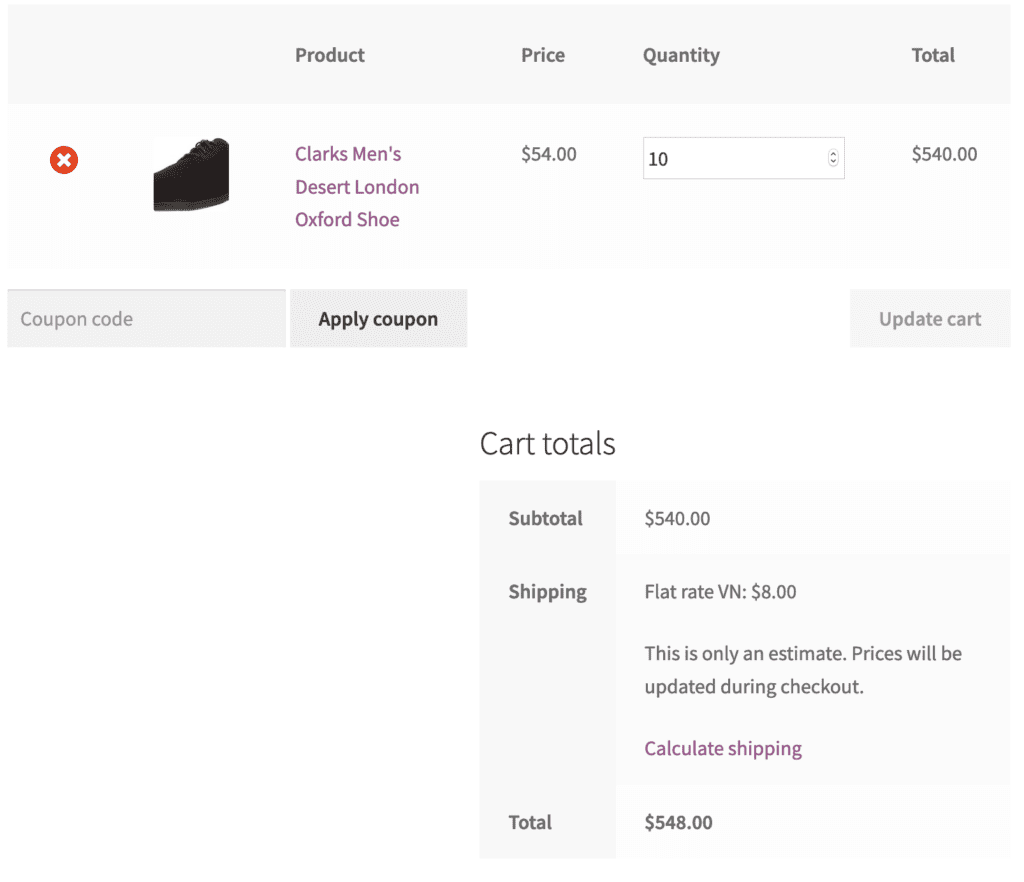
    How To Setup Different WooCommerce Shipping Rates By Country 2

    You can see that the shipping rate is $8 and it’s the flat rate shipping for Vietnam. As I’m not logged in, WooCommerce determined the shipping method by my IP address (I’m living in Vietnam right now). You can also notice that WooCommerce told us that the cost is only an estimate. To know the exact shipping cost, let’s click on Calculate shipping and change my address to Australia:
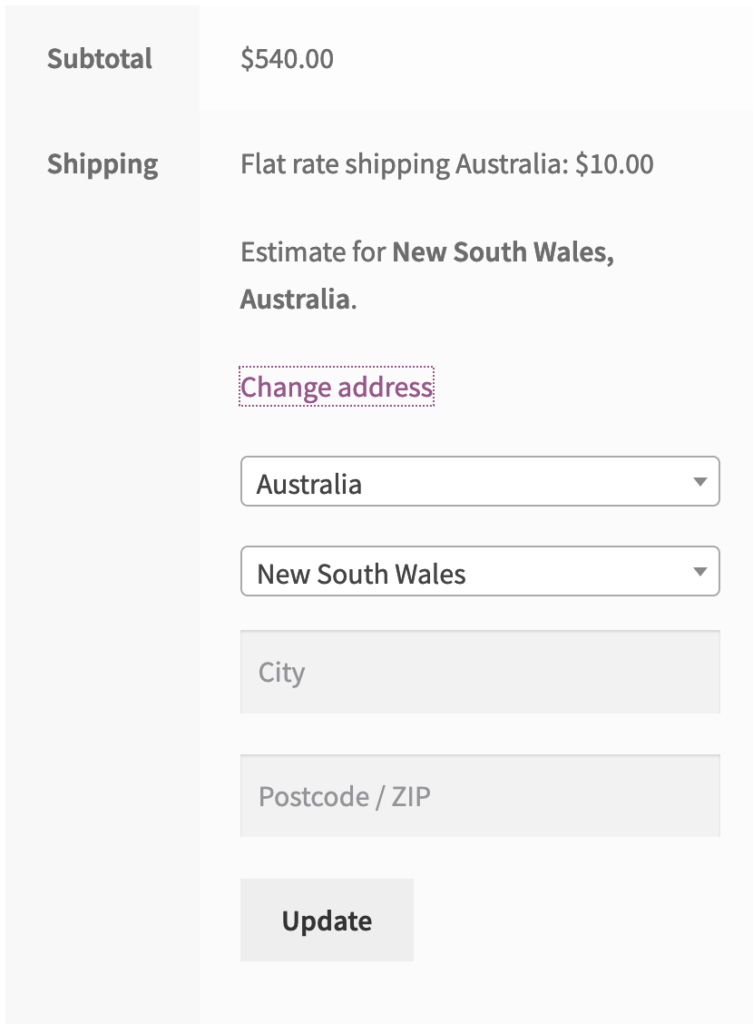
    change address to australia

    After clicking on Update, you can see that the shipping fee is now $10, instead of $8. You can go ahead and change the address to an US or UK address, the shipping cost will update accordingly.

    Conclusion

    As you can see, WooCommerce provides us some flexibility when setting flat rate shipping for different countries. Using WooCommerce default settings, you can also set shipping fee per product if you like. If you need more advanced shipping fee structure, you may need to use a plugin to achieve that.

     

  • How To Setup Buy 3 Get 1 Free In WooCommerce

    How To Setup Buy 3 Get 1 Free In WooCommerce

    You are a store owner and you want to run a promotional campaign that gives your customer one product for free for every 3 (or any other number) items they buy in a single order. Obviously, WooCommerce doesn’t support this kind of setup by default. Luckily for us, there is a plugin that does this job really well. That’s a plugin called Woo Discount Rules Pro.

    Obviously, there are more discount rules you can setup using this plugin but we only focus on the buy x get y items for free in this post.

    How to setup buy 3 get 1 for free using Woo Discount Rules Pro

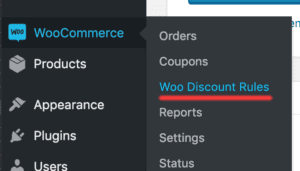
    Now, I suppose that you have the plugin installed and activated. Let’s go to WooCommerce->Woo Discount Rules:

    accessing woo discount rules

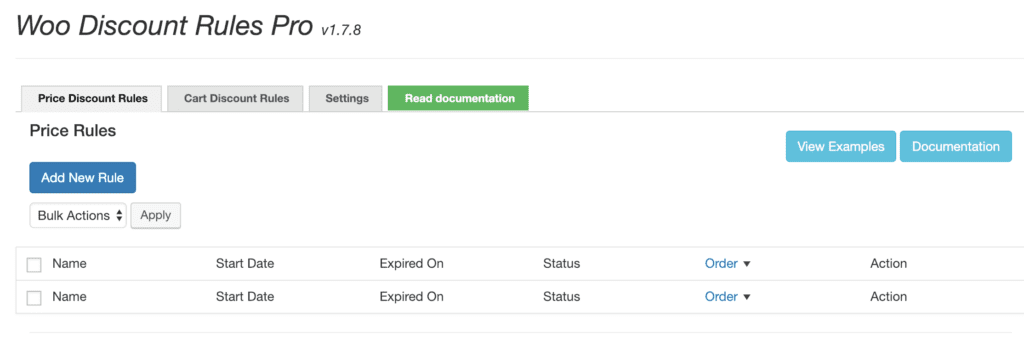
    You will see an interface like this:

    woo discount rules pro interface

    Our next step is to create a rule since we don’t have any rule here.

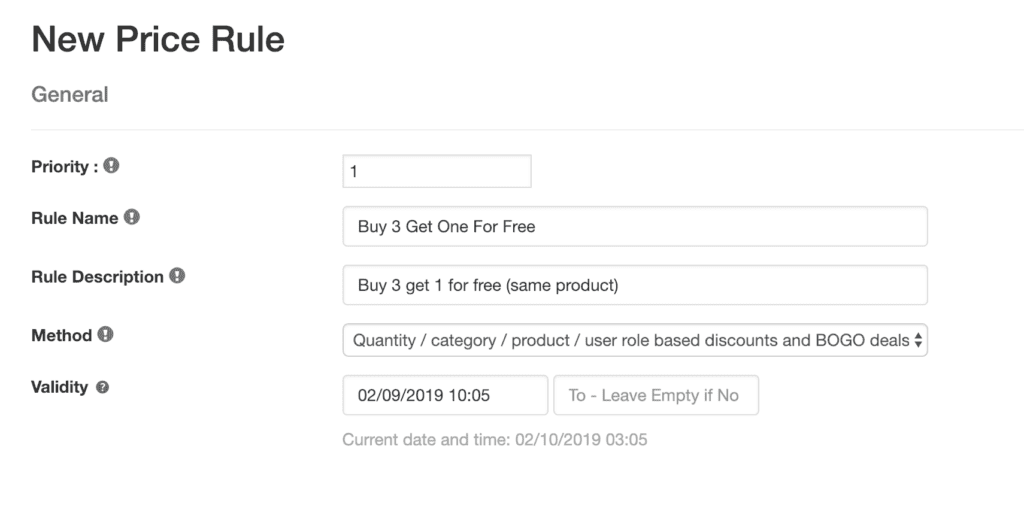
    How To Setup Buy 3 Get 1 Free In WooCommerce 3

    Let’s enter the details as above. Since we don’t have any rules yet, the priority box can be set to any valid number (positive). The validity field is where you can set at which period that this rule is effective. It’s all up to you to set this period. Now, let’s click next to the next screen.

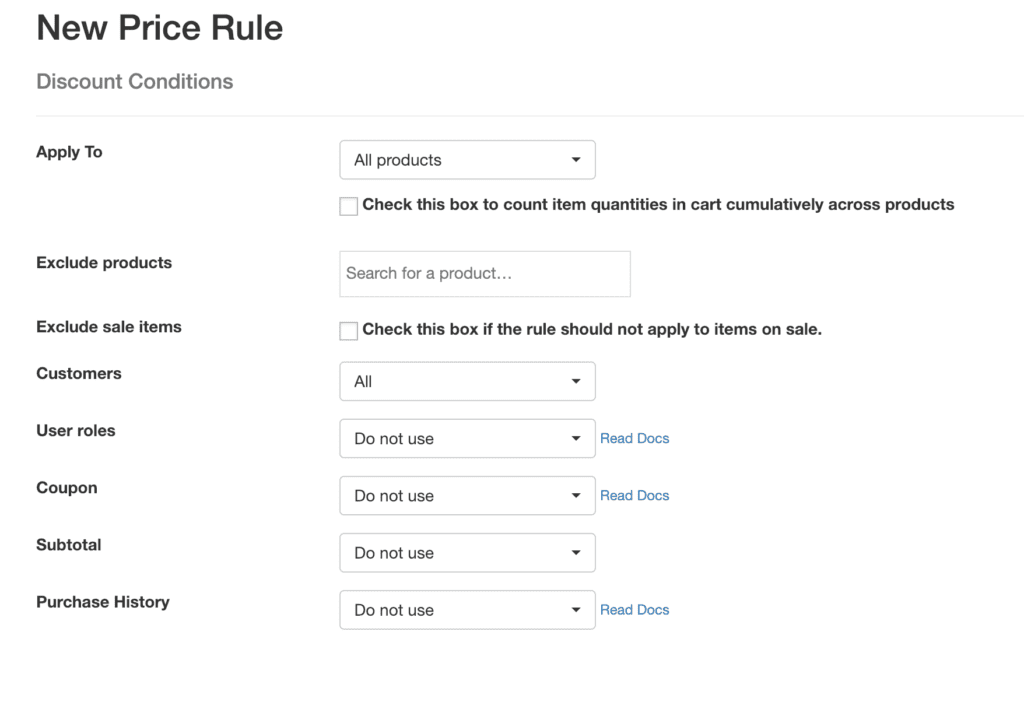
    create rules second screen

    All fields in this screen are quite explanatory. It allows you to further customize the rule. For example, you can set this rule to be applied to customers who previously purchased from you (subtotal or number of items). You can also set the minimal subtotal of the current order to active the rule…

    For now, we are going to apply the rule to all products (though you can add some products to the exception list if you want to).

    Let’s click next to get to the last screen:

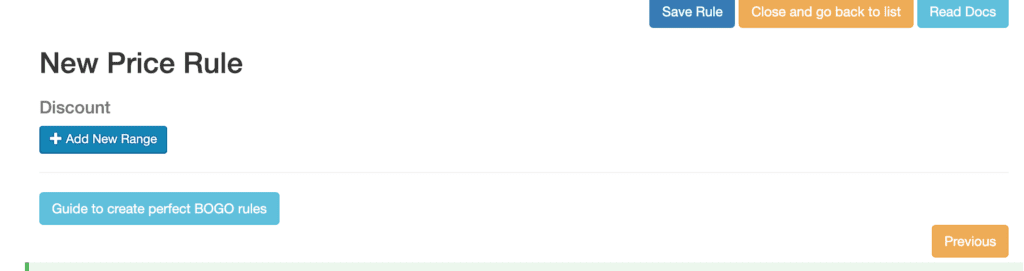
    add the discount range

    Let’s click on Add new range:

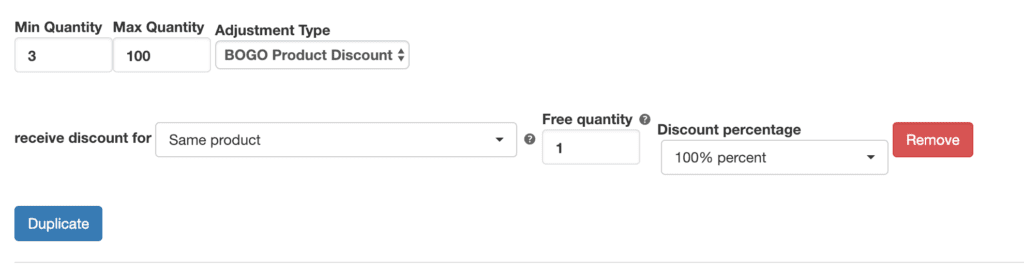
    setup buy 3 get 1 free rule

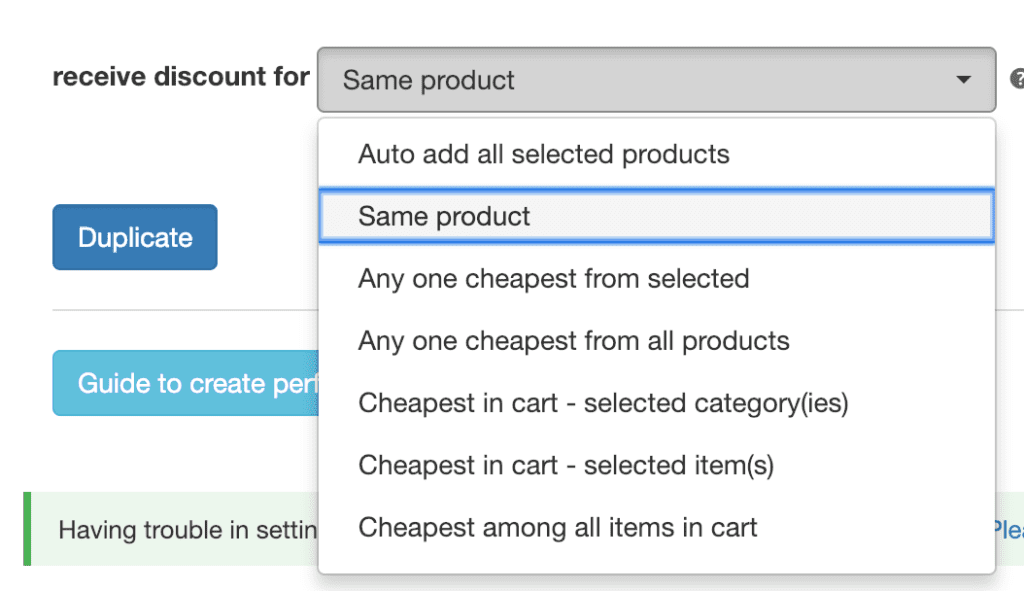
    Now, you can see that I’ve setup the rule to buy 3 (min quantity) so the customer can get one item of the same product for free. You are not limit to the item of the same product, in fact, you can have a bunch of options as demonstrated below:

    How To Setup Buy 3 Get 1 Free In WooCommerce 4

    You can see that, there are many options that you can customize to match your exact needs.

    Now, I click on Save rule (located at the top).

    See the buy 3 get 1 for free rule in action

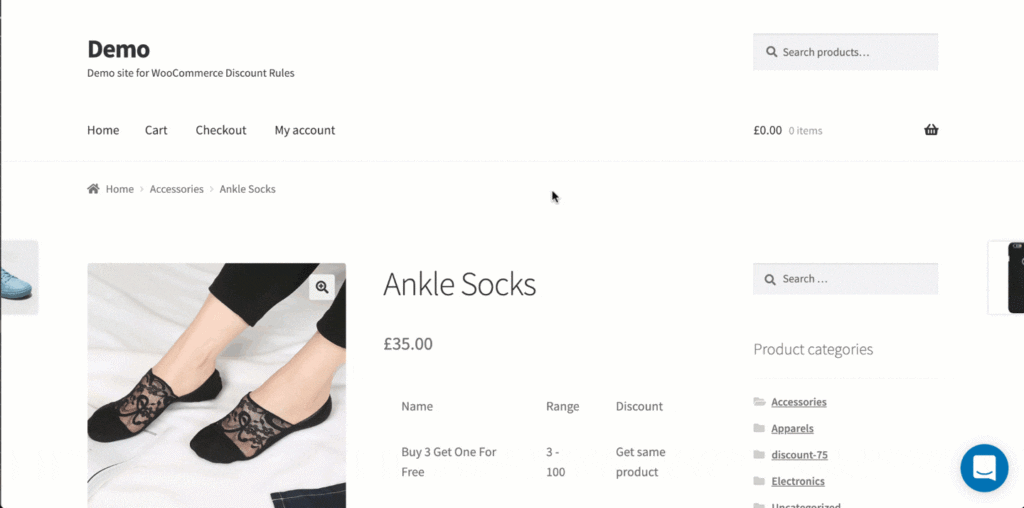
    Now, I’m going to buy 3 item of a single product. Let’s see the rule in action:

    buy 3 get 1 free coupon woocommerce

    As you can see, the rule displayed on the product page and when you view the cart, the subtotal is counted for only two products.

    Conclusion

    Woo Discount Rules Pro is not a free plugin but it add much more flexibility to your shop. It can also help you create loyal customer program (that rewards customers who previously bought products on the shop). If you are running a store, this is one discount rule plugin that you should have.

    Thanks for reading the post. Make sure you check other WooCommerce Tips to help you build better eCommerce sites.

  • How To Change Add To Cart Button Styles In WooCoommerce With Free Plugin

    How To Change Add To Cart Button Styles In WooCoommerce With Free Plugin

    The WooCommerce add to cart buttons are often designed by the theme developer. Sometimes, the default button styles provided by the theme doesn’t suit your need. That’s when you need to do something to change the add to cart button styles. But how?

    Customize your add to cart button using plugin

    We are going to use a plugin called  Ultimate Custom Add To Cart Button to customize the buttons on your WooCommerce store. This is the plugin I develop so I would love to have your feedback. The plugin is free to use and there is a pro version available here which has additional cool features (Which also has a $20 discount at this time).

    Now, we are going to learn how to customize the add to cart button for your site.

    Change the add to cart text

    I have covered how to change the add to cart, read more, view products… text on the buttons in this post. You can have  a look at that for more details.

    Add shopping cart icon to the button

    We are going to add the cart icon to the add to cart button. As you can see now, my buttons don’t have any icon.

    add to cart button without an icon

    Now, we go to Ultimate ATC Button to add a cart icon to that.

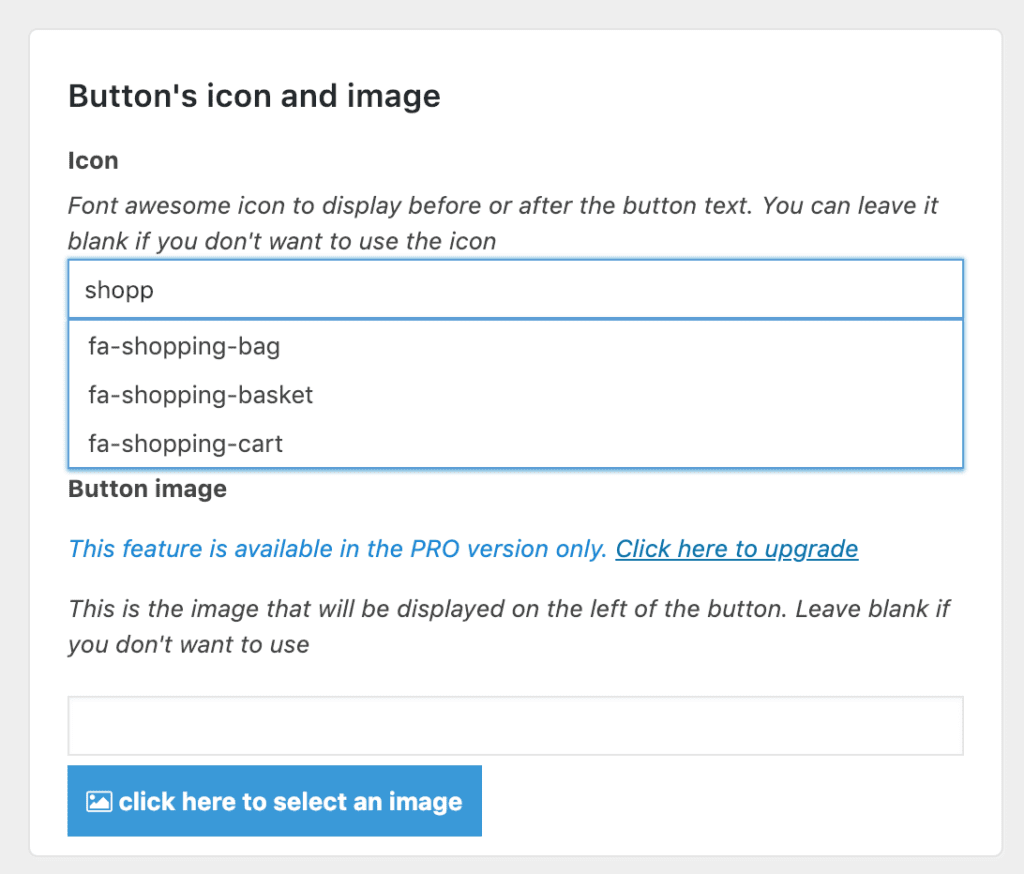
    I’m going to use a shopping cart icon. So, I enter the text shopping and you can see that, the list of suggestions shows:

    How To Change Add To Cart Button Styles In WooCoommerce With Free Plugin 5

    I select the last option, fa-shopping-cart and scroll down to the bottom then click on save changes.

    Now, if I reload the product page, I will see the cart icon in the button:

    add to cart button with shopping cart

    Change button’s background color and text color

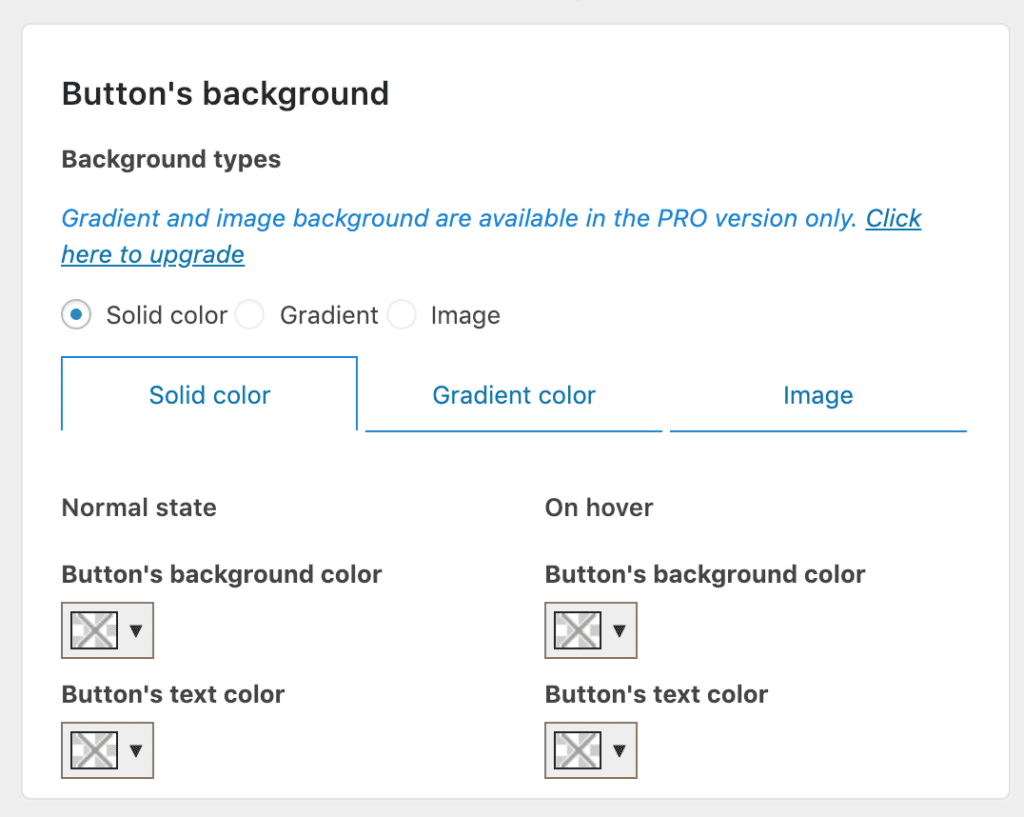
    With this plugin, you can easily change the background color of the button too.

    change add to cart button background color

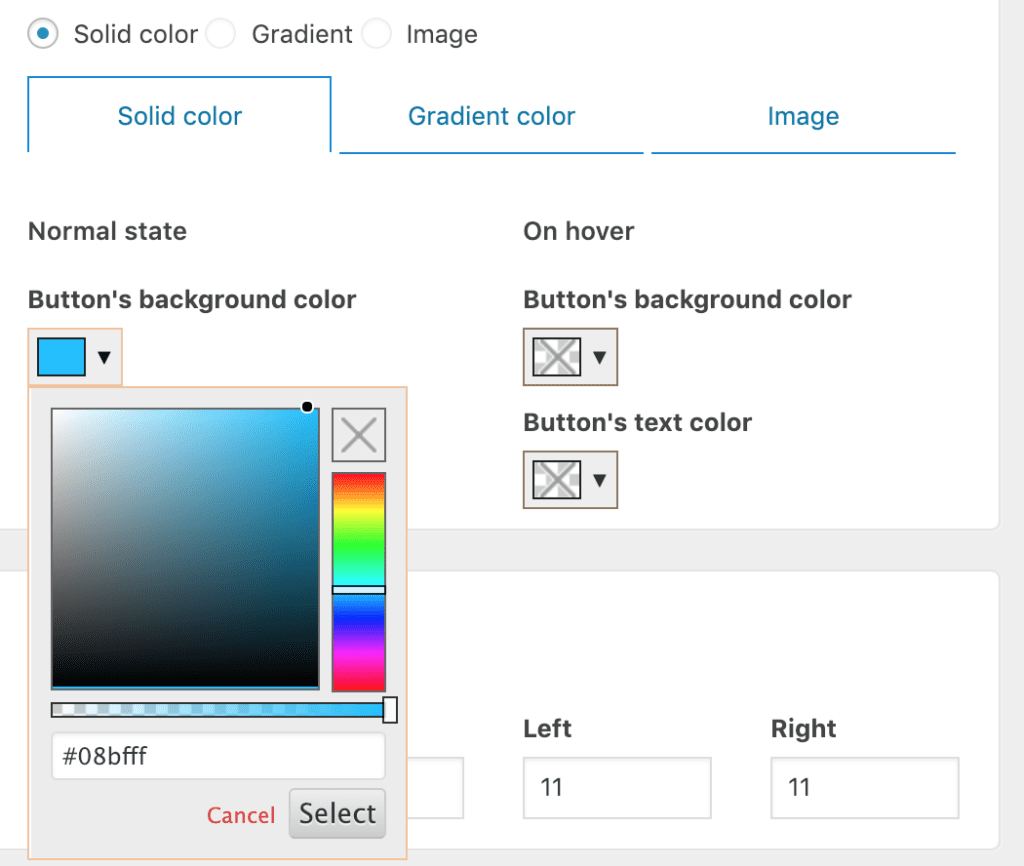
    The options are straightforward. You can pick whatever color you want for the button’s background. For example, I’m going to use the blue color for the button:

    select color for the button

    Now, I click on save changes and view the results:

    view button color changed

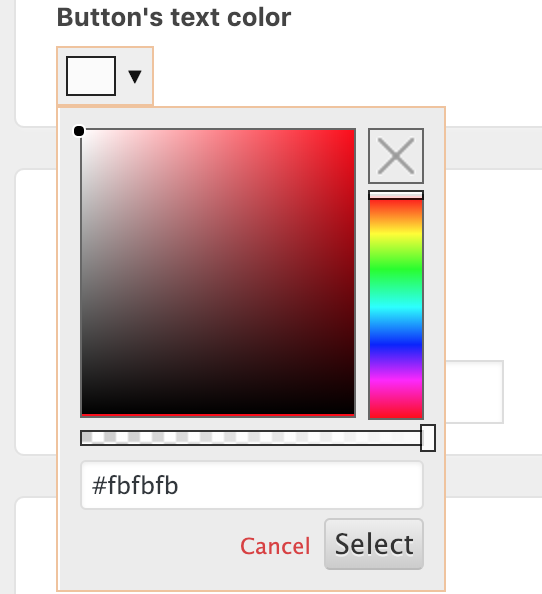
    As you can see, the text color doesn’t work really well with this background. You can change that too with the text color option in the plugin:


    How To Change Add To Cart Button Styles In WooCoommerce With Free Plugin 6
    change add to cart button’s text color

    If I reload the product page, I can see the text color has changed:

    button text color has changed

    If you are using the pro version, you can change the background to use a gradient or an image too.

    Change button’s padding and margin

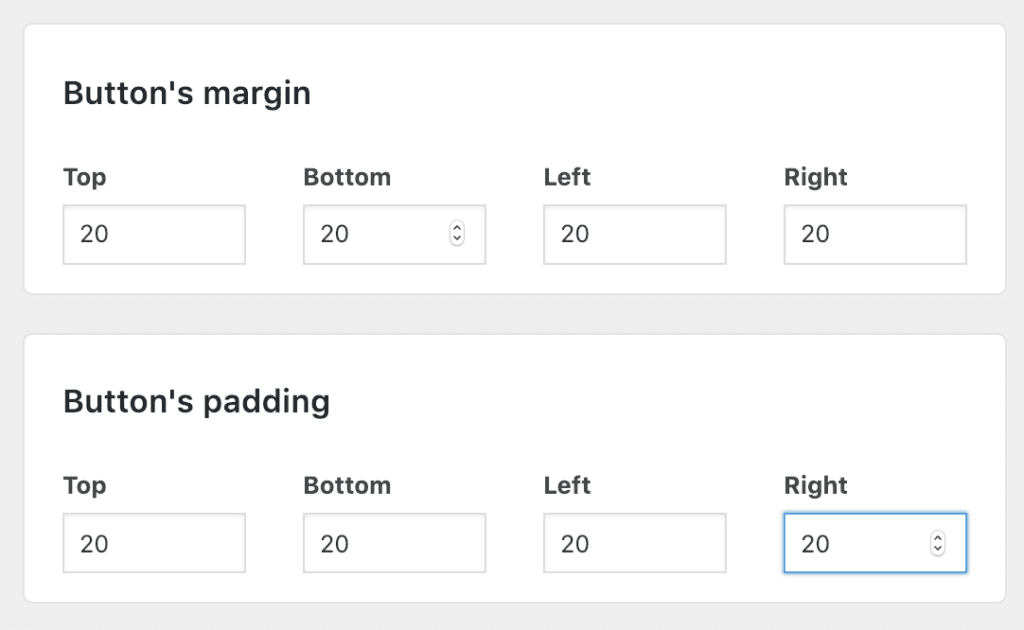
    The last section in the plugin allows you to customize the add to cart button’s padding and margin. You can enter your desired values here (in px) to adjust the button’s style. For example, I set the margin and padding for the button to 20px as in the image below:

    change add to cart button padding and margin woocommerce

    Now, if I view the product page, the button has changed accordingly:

    add to cart button changed padding and margin

    In addition to let you change button’s styles, you can do the following in the pro version:

    • Set an image as the buttons’ background. That means you can use an image to replace your add to cart button
    • Remove the up and down arrows in the quantity input box
    • Completely change the style of the input box (add plus and minus buttons to increase and decrease order’s quantity)

    Click here to find out more about Ultimate ATC Buttons PRO

    Change the add to cart button’s styles with CSS

    As the time I write this post, almost all themes support a section called Additional CSS (You can access this panel by clicking on Appearance->Customize). This is the place you can add additional CSS to your site. If you know CSS and confident in your CSS skills, it’s not a big problem to add background color, hover color or even gradient on the background. The important thing is to get the selector of the button. The trick is to use the inspection tool of your browser.

    Let me show you how:

    As you can see, if you know a bit of front end web development, this is the easiest way.


    However, not all people can do that. I would recommend you use my plugin above to achieve the designs much quicker and easier.

    Conclusion

    As you can see, there are quite many options for you to change to tweak the styles of the button. If there are settings you need that aren’t available in the plugin, please let me know and I’ll add that to the plugin.

  • How To Change Add To Cart, View Products, Select Options Button Text In WooCommerce

    How To Change Add To Cart, View Products, Select Options Button Text In WooCommerce

    WooCommerce provides default text for their add to cart buttons. Here are the default text for all types of products in WooCommerce:

    1. Simple product – add to cart
    2. Variable product – select options
    3. Grouped product – View products

    While those default text make sense, you often want to change it to something more attractive to boost your sales.

    If you know PHP, you can easily change the text as you like. You can stop reading the post now. However, if you don’t know how to edit the WooCommerce functions, this post is for you.

    Good news is, we are not going to mess with WooCommerce code today. That’s too risky. We are going to use a plugin that I created specifically for this purpose.

    Let’s download the ultimate add to cart button customizer for WooCommerce plugin here

    Now, we are going to change the WooCommerce button text for each case:

    How to change add to cart text for simple product

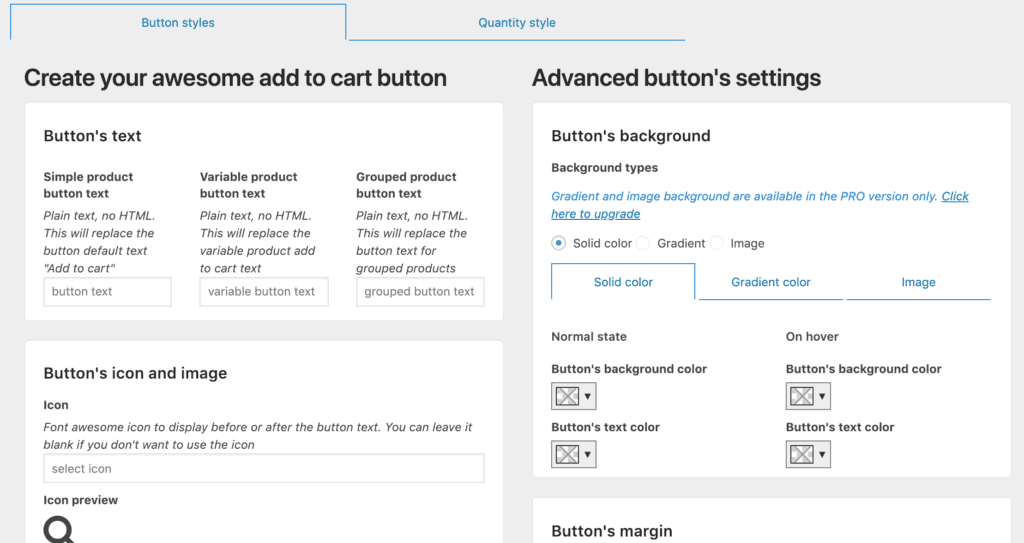
    Now, I assume that you have installed the plugin and activated it. If you click on Ultimate ATC Button->Configure buttons link on the left, you’ll see this interface:

    ultimate add to cart configure buttons
    ultimate add to cart configure buttons

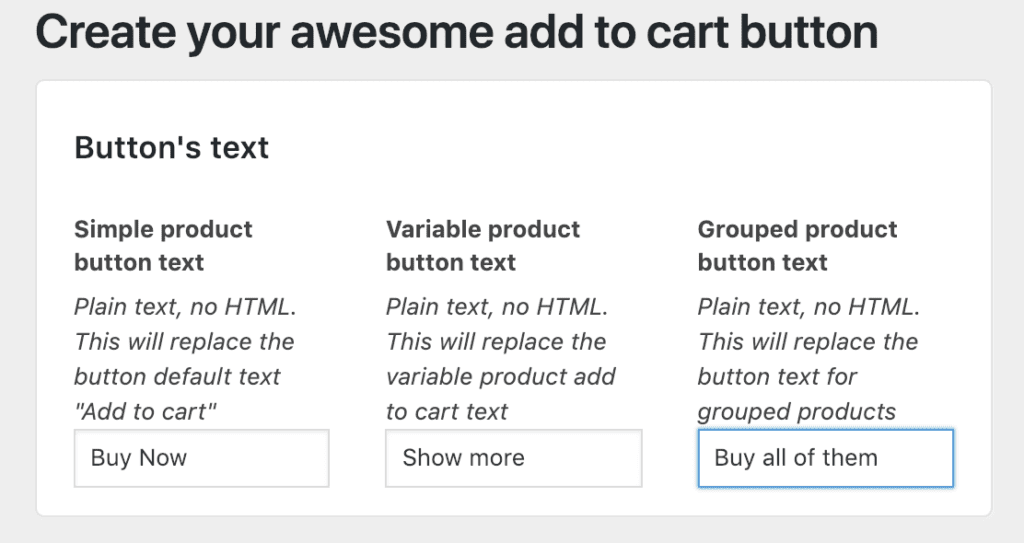
    Now you can see that at the top left section, there are three text boxes. If you want to change the add to cart text on simple products, simply add your desired text in the first box. For example, I’ll use the text “buy now”.

    Make sure you scroll down and click on save changes.

    Now, if I view the shop page or the product page of a simple product, I’ll see “Buy Now” instead of the default Add To Cart.

    How To Change Add To Cart, View Products, Select Options Button Text In WooCommerce 7

    It’s simple, isn’t it?

    Well, now you can guess how we can change the text for variable and grouped products.

    How to change “select options”, “view products” on variable and grouped products

    At this point, you will not need more hand-holding. I’ll change the text for variable and grouped products as below:

    How To Change Add To Cart, View Products, Select Options Button Text In WooCommerce 8

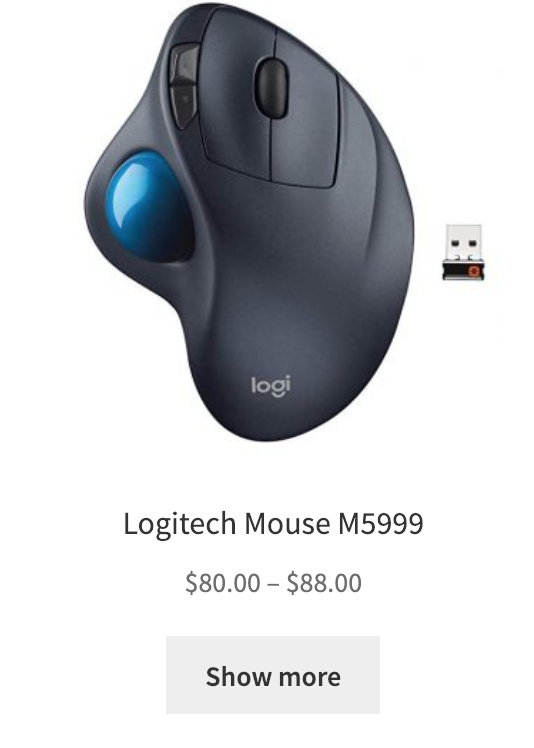
    After clicking on save changes, I see the following results:

    How To Change Add To Cart, View Products, Select Options Button Text In WooCommerce 9 How To Change Add To Cart, View Products, Select Options Button Text In WooCommerce 10

    Conclusion

    As you can see, changing the button text for your WooCommerce product can be very easy using the plugin. I hope you enjoy it. The plugin has a tons more options for you to fully customize your buttons.


  • WooCommerce Developer Cheat Sheet

    This post is for WordPress/WooCommerce developer only. If you have problem implementing what I’m going to show you, please drop me a message.

    How to get WooCommerce attribute label

    There is a function for this purpose:

    wc_attribute_label($attribute_name)

    For example, the attribute name is pa_color, your name for this attribute is Color. The code above outputs “Color”


    How to get WooCommerce Add to cart form

    So currently, I’m developing a product table plugin for woocommerce. Initially, I used custom HTML code for the add to cart button. However, since I have another plugin that add styles to the add to cart button, I would love to just get the add to cart form from WooCommerce and use the styling from the custom add to cart plugin.

    So, the question is how to get the Add to cart form output by WooCommerce?

    It turned out, you can use this code to get the content of the form and store it in a variable:

    ob_start();
                    if ($this->productType == 'variable')
                    {
                        wc_get_template( 'single-product/add-to-cart/variable.php', array(
                            'available_variations' => $this->product->get_available_variations(),
                            'attributes'           => $this->product->get_variation_attributes(),
                            'selected_attributes'  => $this->product->get_default_attributes()
                        ) );
    
                    } else
                    {
                        wc_get_template( 'single-product/add-to-cart/simple.php', array(
    
                        ) );
    
                    }
    
    
                    $data = ob_get_contents();
    
                    ob_get_clean();


    How to send add to cart request via ajax call and update the cart

    In shop page, you will see that WooCommerce support ajax add to cart. When the customers click on add to cart button, the product is added to cart and the cart (normally at the top of the page/navigation) get updated. How can you do that?

    First, you need to send an ajax request to the current url and add this:

    ?wc-ajax=add_to_cart

    Then the parameters are:

    {
    product_id: id,
    product_sku: "",
    quantity: x
    }

    If it is a variable product, you need to include attribute data:

    {
    product_id: id,
    product_sku: "",
    quantity: x,
    attribute_1: attribute_1_value,
    attribute_2: attribute_2_value
    }

    Make sure you replace attribute_1/attribute_2 with actual attribute name.

    Then, send the ajax request. If your request pass WooCommerce validation, the product will be added to cart and you will get this response:

    wc-ajax-response

    As you can see, it passes all the HTML needed and also the selectors for us to update the cart. At this point, you need to update the cart by replacing the HTML content for each elements returned in fragments.

    Here is the sample code I have on my plugin:

    $.post(window.location.href + "?wc-ajax=add_to_cart" , {data object here}, function(response){
    
        
        //update the cart
        try {
            let data = (response);
            _.each(data.fragments, function(content, index){
               $(index).html(content);
            });
    
        } catch (e) {
            console.log(e);
    
        }
    });

    If you now jQuery, the code above should be familiar. I use underscore to loop through all items in fragments and update HTML content for each element returned by WooCommerce.