Category: Backend

  • 2 Easy Steps To Configure Docker logging with rsyslog

    If you have problem configure Docker logging with rsyslog, this post may provide a quick solution. I, by no mean, say that this is the ultimate guide for docker & rsyslog configuration. However, the following configurations helped me achieve my goal.

    The desired goal

    Based on a requirement from a client, they want to store all docker logging to a custom file location. That includes dockerd logging and containers’ logging.

    So, after reading this tutorial, you can:

    • Configure docker to log to a custom location using rsyslog

    If that’s your goal, read on.

    Step 1: Configure docker logging

    By default, docker containers’ log is written to a .json file inside the containers folder (default at /var/lib/docker/containers/<container_id>). We are going to change this default behavior by specifying a different log driver for docker, which is rsyslog.

    So, create/edit your /etc/docker/daemon.json file and paste the following content:

    {
        "log-driver": "syslog",
        "log-opts": {
            "tag" : "docker-container- {{.ImageName}} - {{.ID}}"
        }
    }

    Now, save the file and restart your docker service using systemctl restart docker.

    What have we done?

    As you can see in the log file, we specify the log driver to “syslog”. We also specify tag in “log-opts”. The tag option allows us to pass in custom data to the log message. The “docker-container” part is used to filter the log message in rsyslog settings so we can write it to a different file (other that /var/log/syslog).

    {{.ImageName}} is the name of the Docker image. {{.ID}} is the ID of the container (short ID, 12 chars). These info are optional. You can see the list of parameters you can passed in here.

    Now, let’s run a docker container and check the log message:
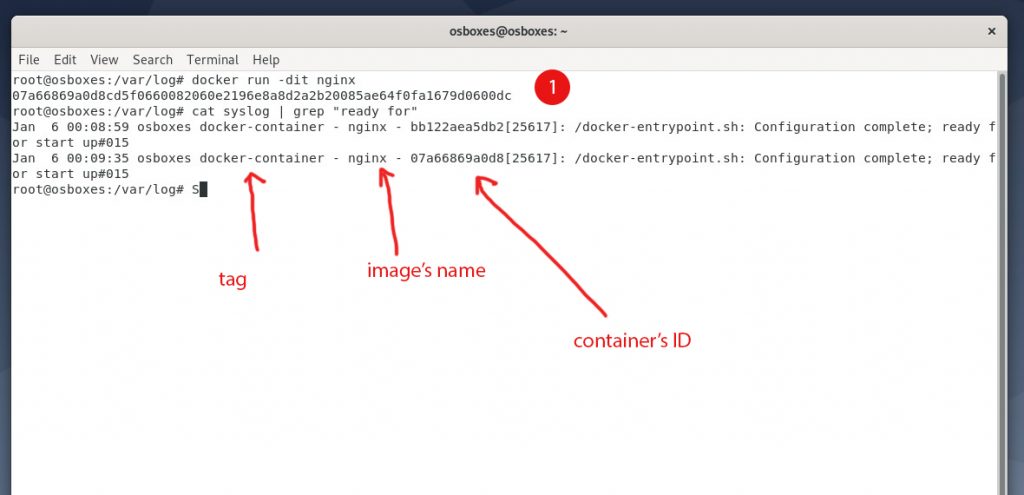
    Configure Docker logging with rsyslog - log message in rsyslog

    As you can see, we ran an nginx container and view the content of /var/log/syslog and sure enough, the new log format is there with image name and container’s ID.

    The next step is to tell rsyslog to store messages like this at a different location.

    Step 2: Configure rsyslog to filter docker log messages

    In this step, we are going to create a dedicate log config for docker. Let’s say I want to store all docker-related messages in /var/log/docker/.

    Create /etc/rsyslog.d/docker.conf with the following content:

    $FileCreateMode 0644
    template(name="DockerLogFileName" type="list") {
       constant(value="/var/log/docker/")
       property(name="syslogtag" securepath="replace" \
                regex.expression="docker/\\(.*\\)\\[" regex.submatch="1")
       constant(value="/docker.log")
    }
    if $programname == 'dockerd' then \
      /var/log/docker/combined.log
    
    if $syslogtag contains 'docker-container' then \
      /var/log/docker/containers/docker.log
      &stop
    
    $FileCreateMode 0644

    Most of the code in this file I got from this answer on stackoverflow.

    Here are the important parts:

    We check if the log message has ‘docker-container’ (which we inserted when configuring /etc/docker/daemon.json), if it does, we save the log to /var/log/docker/containers/docker.log.

    You can specify a different location that suits your preferences.

    This file contains all logging message for your containers.

    Next, if you don’t want to store the log message in /var/log/syslog file, include the ‘&stop’ line.

    If you comment out the ‘&stop’ line (with #), log messages from docker containers will also be save to /var/log/syslog and /var/log/daemon.log

    Now, restart syslog service with systemctl restart rsyslog.

    Conclusion

    There you have the working solution for storing docker containers’ log message at a specific location on disk with rsyslog. Make sure to use logrotate to split the file since it could be very large after some time, depends on your system.

  • Setup MariaDB Galera Cluster in 5 Minutes

    Setup MariaDB Galera Cluster in 5 Minutes

    Recently, I dived into high availability systems. Among Solr, Redis… MariaDB is a major concern. I followed quite many tutorials on the internet but without luck. I thought to myself, setting up MariaDB Galera cluster must be hard. However, it turned out quite simple. In fact, you don’t need to spend more than 5 minutes to setup a cluster and get it up and running.

    Requirements for MariaDB Galera cluster

    To run a MariaDB Galera cluster, you must have at least 2 nodes. All nodes must be running the same MariaDB version. In addition, you need to open some specific ports between the nodes to let the cluster to form. Here are the ports:

    • 3306 For MySQL client connections and State Snapshot Transfer that use the mysqldump method
    • 4567 For Galera Cluster replication traffic. Multicast replication uses both UDP transport and TCP on this port.
    • 4568 For Incremental State Transfer.
    • 4444 For all other State Snapshot Transfer.

    Setting Up MariaDB Galera Cluster on The First Node

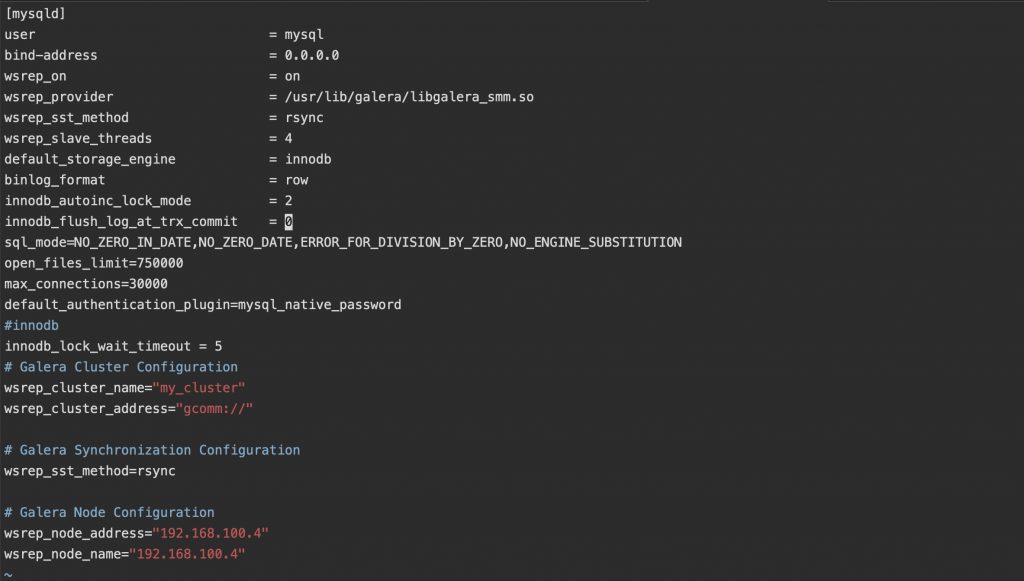
    On the first node, edit your mysql configuration file and put the following content to the file /etc/mysql/my.cnf

    [mysqld]
    user                              = mysql
    bind-address                      = 0.0.0.0
    wsrep_on                          = on
    wsrep_provider                    = /usr/lib/galera/libgalera_smm.so
    wsrep_sst_method                  = rsync
    wsrep_slave_threads               = 4
    default_storage_engine            = innodb
    binlog_format                     = row
    innodb_autoinc_lock_mode          = 2
    innodb_flush_log_at_trx_commit    = 0
    sql_mode=NO_ZERO_IN_DATE,NO_ZERO_DATE,ERROR_FOR_DIVISION_BY_ZERO,NO_ENGINE_SUBSTITUTION
    open_files_limit=750000
    max_connections=30000
    default_authentication_plugin=mysql_native_password
    #innodb
    innodb_lock_wait_timeout = 5
    # Galera Cluster Configuration
    wsrep_cluster_name="my_cluster"
    wsrep_cluster_address="gcomm://"
    #172.31.29.119
    # Galera Synchronization Configuration
    wsrep_sst_method=rsync
    
    # Galera Node Configuration
    wsrep_node_address="Node_IP_ADDRESS"
    wsrep_node_name="Node_IP_ADDRESS"
    mariadb galera cluster setup on the first node

    Also, on the first node, you must tell mysql that it is safe to start the new MariaDB Galera cluster from this node. Thus, edit the file /var/lib/mysql/grastate.dat and edit the last line (safe_to_bootstrap) from 0 to 1 (if it is set to 0):

    # GALERA saved state
    version: 2.1
    uuid:    fc43dfacg-c4442-32e4-9e43-tghf6323bn4
    seqno:   -1
    safe_to_bootstrap: 1

    Depends on what user is running mysql service, you need to give it the write permission to grastate.dat file. Otherwise, it cannot start the cluster. If you need a quick fix, just run the following command:

    chmod 777 /var/lib/mysql/grastate.dat

    Now, you can start the node by issuing this command:

    systemctl restart mysql

    If everything is ok, you should not see any error message :p.

    If you run

    systemctl status mysql

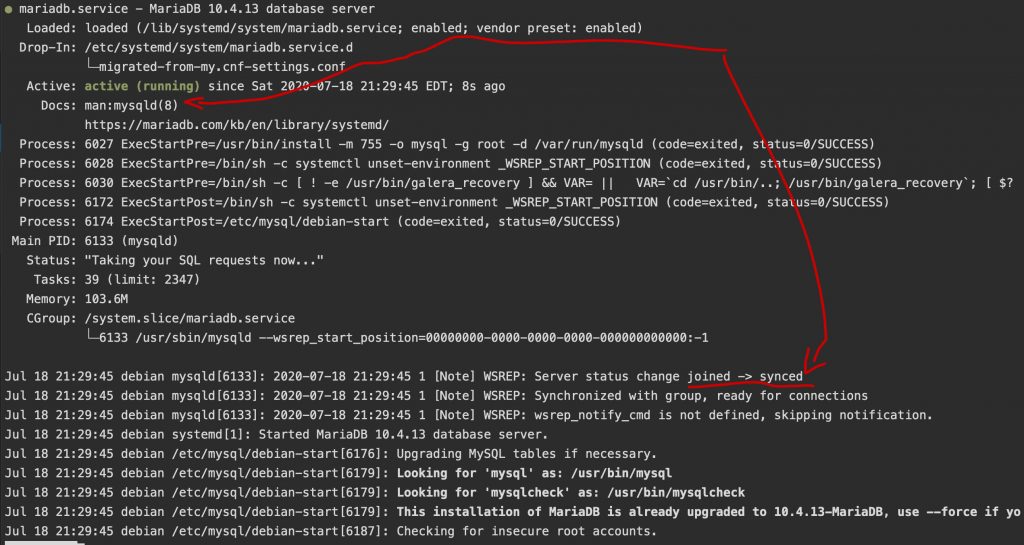
    You should see something like this:

    mariadb galeara cluster started succesfully

    Setup MariaDB Glaera cluster on other nodes

    Now you have your first node up and running. Setting up other nodes should be simple.

    In your /etc/mysql/my.cnf enter the following content:

    [mysqld]
    user                              = mysql
    bind-address                      = 0.0.0.0
    wsrep_on                          = on
    wsrep_provider                    = /usr/lib/galera/libgalera_smm.so
    wsrep_sst_method                  = rsync
    wsrep_slave_threads               = 4
    default_storage_engine            = innodb
    binlog_format                     = row
    innodb_autoinc_lock_mode          = 2
    innodb_flush_log_at_trx_commit    = 0
    sql_mode=NO_ZERO_IN_DATE,NO_ZERO_DATE,ERROR_FOR_DIVISION_BY_ZERO,NO_ENGINE_SUBSTITUTION
    open_files_limit=750000
    max_connections=30000
    default_authentication_plugin=mysql_native_password
    #innodb
    innodb_lock_wait_timeout = 5
    # Galera Cluster Configuration
    wsrep_cluster_name="my_cluster"
    wsrep_cluster_address="gcomm://IP_OF_THE_FIRST_NODE"
    
    # Galera Synchronization Configuration
    wsrep_sst_method=rsync
    
    # Galera Node Configuration
    wsrep_node_address="IP_OF_THIS_NODE"
    wsrep_node_name="IP_OF_THIS_NODE"

    Replace the IP_OF_THE_FIRST_NODE and IP_OF_THIS_NODE with their respective values.

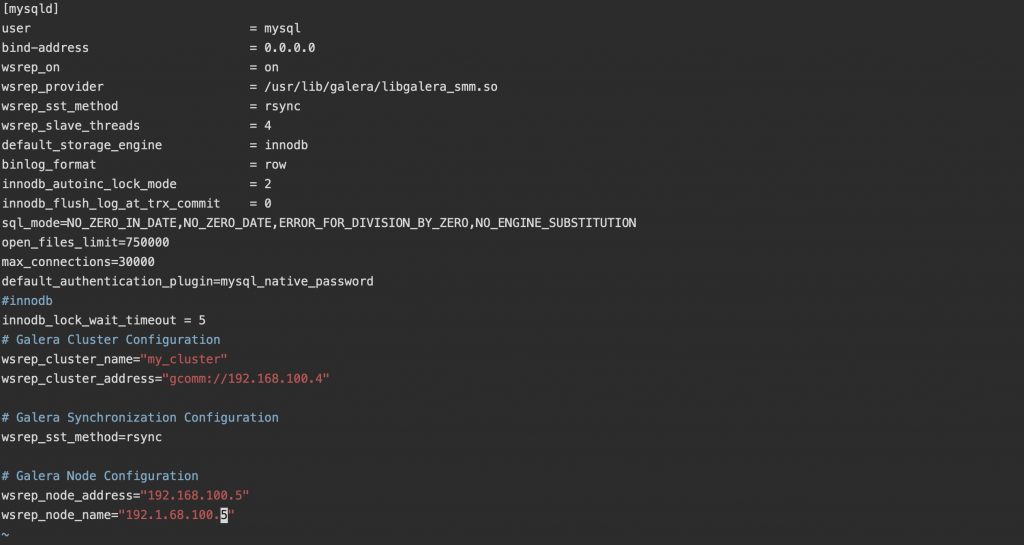
    In my case, my second node IP is 192.168.100.5, the configuration looks like this:

    Setup MariaDB Galera Cluster in 5 Minutes 1

    Save the file and you are ready to start this node:

    systemctl restart mysql

    Now, if you run:

    systemctl status mysql

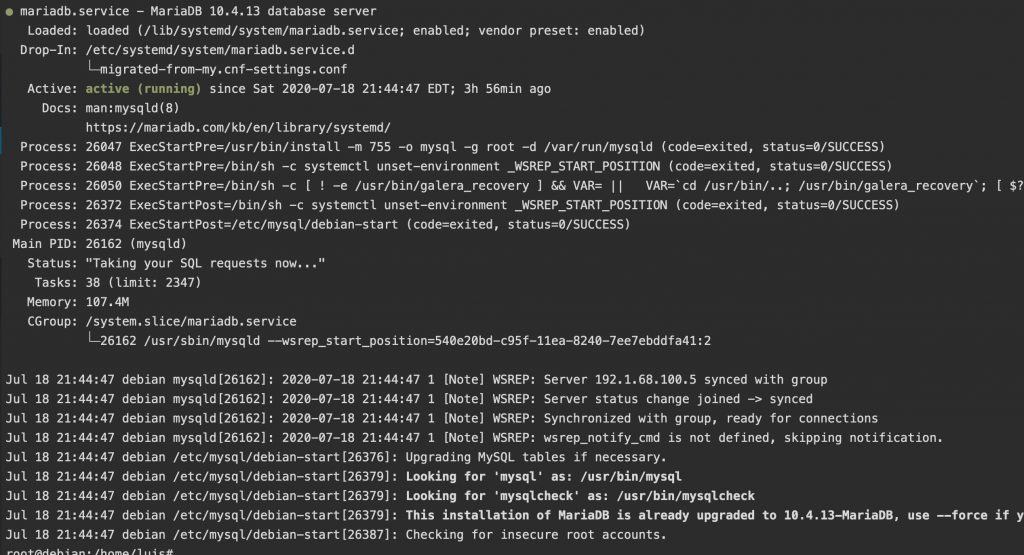
    You should see something similar to this:

    node successfully join galera cluster

    From the log, you can see the status like joined -> synced. That means the node has successfully joined and synced with the cluster.

    Now, if you add data to one of nodes, the other nodes will update automatically.

    Now, your cluster has two nodes. If you want to add more nodes, just repeat the setup on other nodes above.

    Note on restarting the first node

    When your first node of the MariaDB Galera cluster is down, you cannot restart it as with other node. Why? It is because you still have the setting “safe_to_bootstrap” set to 1. When your first node of the cluster is down, simply set this to 0 and restart mysql.

    Conclusion

    As you can see, setting up MariaDB Galera cluster is quite simple. My setup has two nodes. However, you can add as many new nodes as you prefer. In case one node is down, there are other nodes still running that help you continue to serve your customers.