With the new version of WordPress, adding HTML to a sidebar widget is easy. In this post, I will show you step by step instructions to put MailChimp form into your sidebar. You can do this with other email marketing services too. The key is to get the HTML code of your form.
The step by step guide
Step 1: Login to your account
First of all, please login to your MailChimp account
Here, I’m in my account dashboard. Now, look at the top menu, you will see a menu item called Lists. Click on that.
Step 2: Select your list
A list is a collection of your subscribers. For example, you are a sleep instructor. Your audience are interested in sleep training. However, instead of putting all the people in one big list, you can split them into multiple lists to make it easier to manage. Here, as you can see I have two lists: Time Management Tips and Software. I select the Time Management Tips list.
Now, notice that at the right side of each list, you will see a dropdown, click on that and select Signup forms.
Step 3: Get the HTML code of your form
Here, you will see the form editor. You can add or subtract the fields if you need to. Then, copy the part under the title Copy/Paste onto your site
Step 4: Go to your Widget area
You may go to this area before. It’s under Appearance->Widgets
Step 5: Add a custom HTML widget to your sidebar
Your theme could have one or more places for you to put the widgets. Those areas called sidebars (though sometimes you will see they appear at the footer). As you can see in my site here, I have one sidebar at the left and 4 areas in the footer.
I’m going to drag and drop a Custom HTML into the sidebar.
Step 6: Put the HTML code of your form into the widget
Now simply paste the HTML code into the Content box. You can give it a title (it will display as a h3 above your form). I don’t put anything this time.
Now click on Save and then Done.
Step 7: See your form
As you can see, the form is now on the left sidebar.
Visual Composer is a very popular plugin to visually create your content. There are many widgets, components in the plugin. In addition, there are other plugins that add more functionalities and widgets to Visual Composer make it the love of many WordPress users.
However, Visual Composer can only be used on regular pages/posts. If you want to use it to create content for your category page, you are out of luck. Visual composer doesn’t support creating content for the category page.
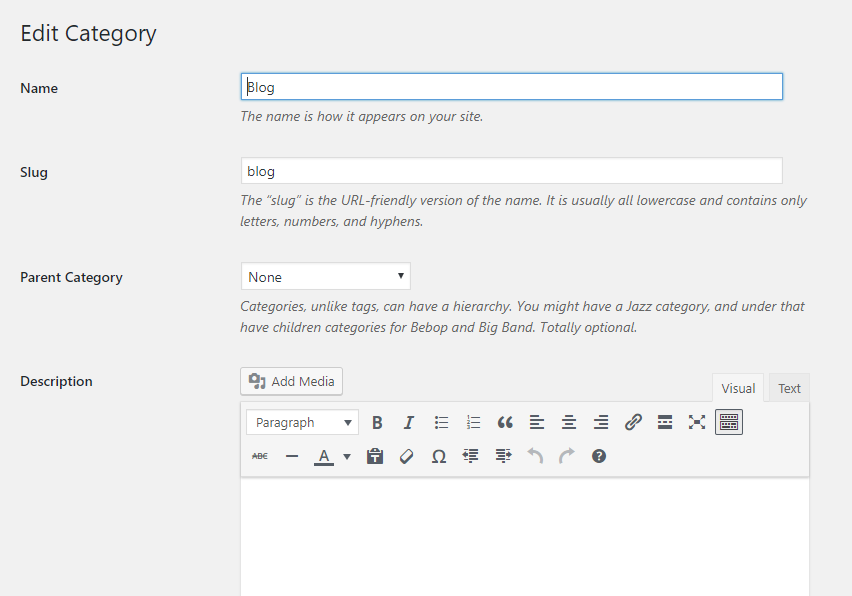
In case you don’t know where to put content on your category, here it is:
As you can see, there is a text editor for you to put the content, descriptions for the category but that’s it. There is no visual composer editor available.
So, how can you enable visual composer in the category page?
Meet the plan
Our plan is quite simple. Instead of putting the content directly into the editor of the category page, we will create a draft post and then display the content of that draft post as the content of the category page.
Why a draft post?
Because you don’t want your visitor to see this post since it’s not a independent post by itself. The sole purpose of this post is to contain the content for the category page.
As a post, you can use all the features of Visual Composer to compose its content.
Let’s look at a diagram, shall we?
Now, let’s get to the step by step implementation.
Step-by-step to use Visual Composer to create content for your category page
Create the content of your category page in a regular post using Visual Composer
Display the content of the draft post in your category using shortcode
I assume that you are familiar with the steps 1 and 2. Creating a post and save it as a draft are quite trivial so I won’t explain in details here.
Step 3: Get a post’s ID
After creating the draft post, make sure you get the post ID and save it somewhere. You can get the post ID of any post by following the instructions below:
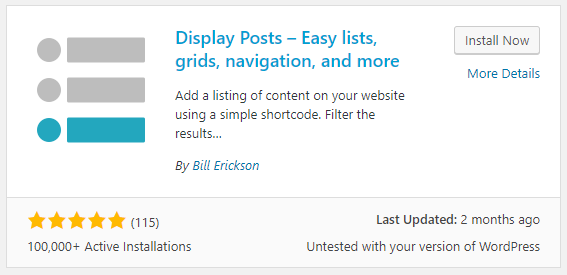
You can navigate to Plugins->Add new and search for this term: Display Posts Shortcode and install the one as in the image below:
Step 5: Find out what theme your site is using
This step is quite simple, please go to Appearance->Themes and you will see what theme is currently active. We need to know this information for the next step.
Step 6: Create a template file for your category page
This step sounds scary for people who don’t know how to code. However, it is very simple. You need to access to your themes folder on your server to complete this step. You can access the files via cPanel or FTP or ssh. Please ask your hosting provider for those details. All hosting providers should have no problem sending you those details.
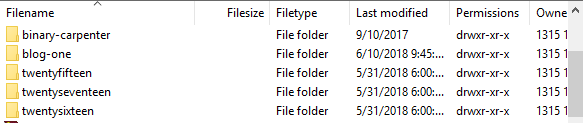
Here I use Filezilla FTP client to access my files. Please go to wp-content/themes on your sever.
In the previous step, I found out that my site is currently using the theme Blog One, I can see the folder of that theme here:
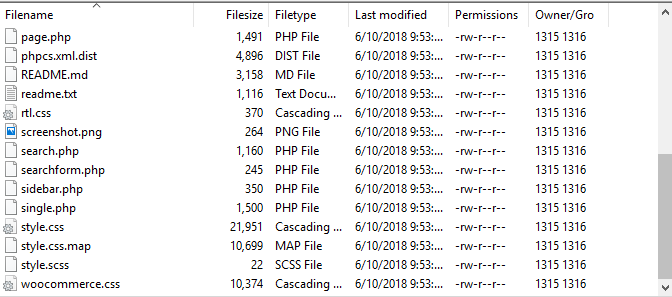
I will click inside that folder to see all the files:
Here, we pay close attention to the one file called single.php. We are going to create a template file for the category using that file.
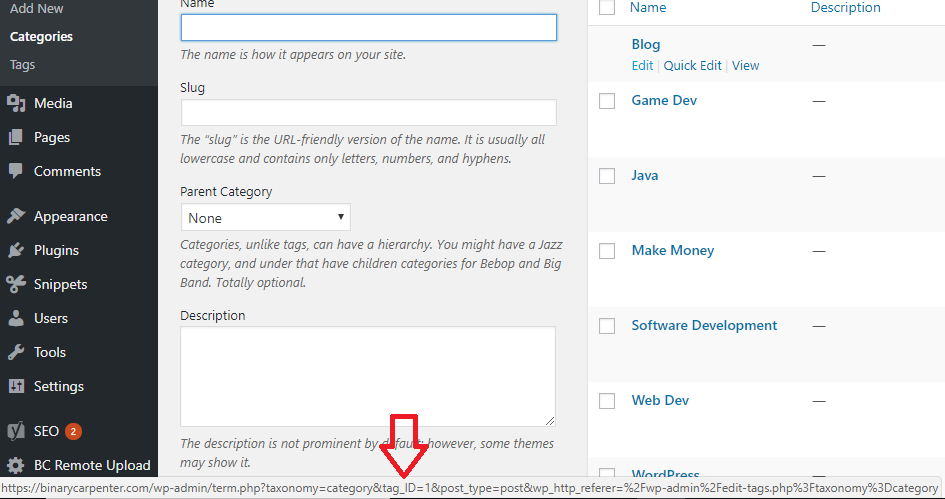
Now, go find your category ID. The method is similar to finding post’s ID.
Go to Posts->Categories
Hover on the Edit link of your category
Look at the status bar of your browser (bottom left)
Locate the tag_ID value
And that’s your category ID.
For example, my Blog category ID is: 1
Now, copy the single.php file and name it category-1.php (if your category ID is 300, you need to create a file called category-300.php);
If you use an FTP client such as FileZilla, you need to download the single.php to your computer first, then rename the file to the new name.
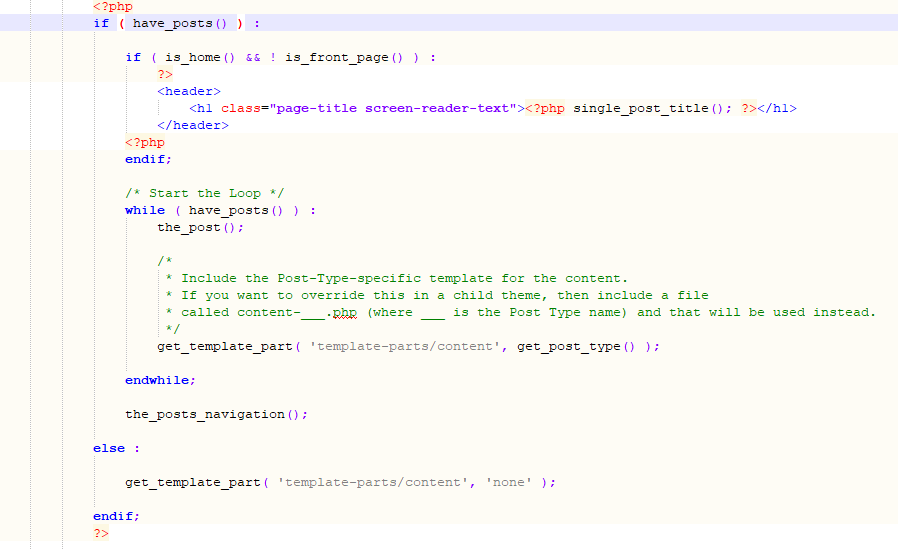
Open the file with your favorite text editor. On Mac, you have Sublime text. I use Notepad++ since I’m on Windows.
Your file may be a bit different, however, it will look something like that.
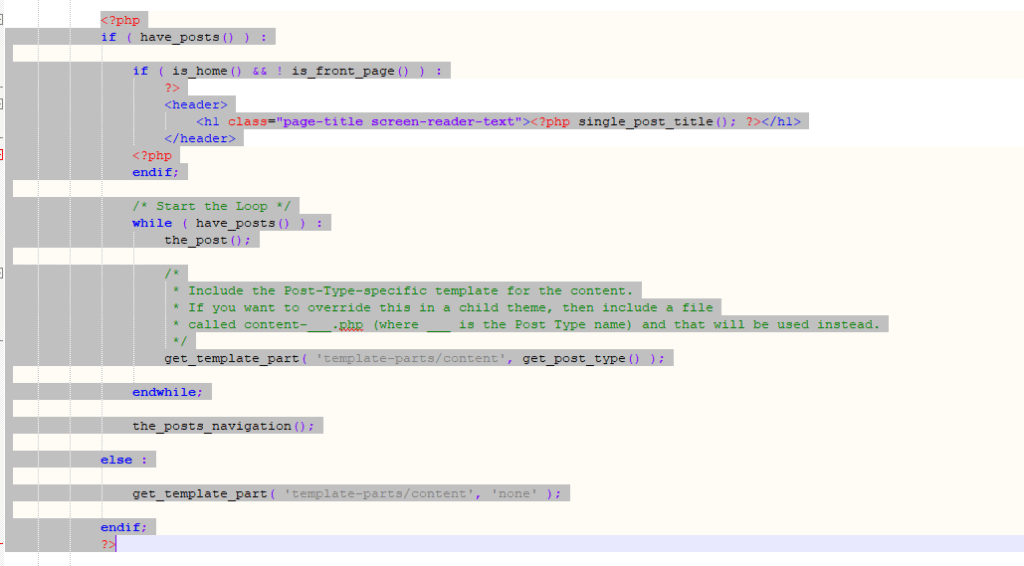
Now, we need to remove the content of the file from the <?php to ?> in the image above:
Then, put the following code right at the place where you have just removed the old content:
Make sure you replace the your_draft_post_ID with the actual draft post ID you got from above.
Now, upload the file to your theme folder (sample folder with the single.php) and you are done.
Now, what you put in the draft post will appear on your category page.
One last thing, please NEVER publish the draft post.
I hope this post has been helpful. Now you can use Visual Composer to create content for your category page.
Update: You can use this method with any page builder, not just Visual Composer. I’ve made a video here demonstrating how I used Elementor to create and display a custom design for my category page:
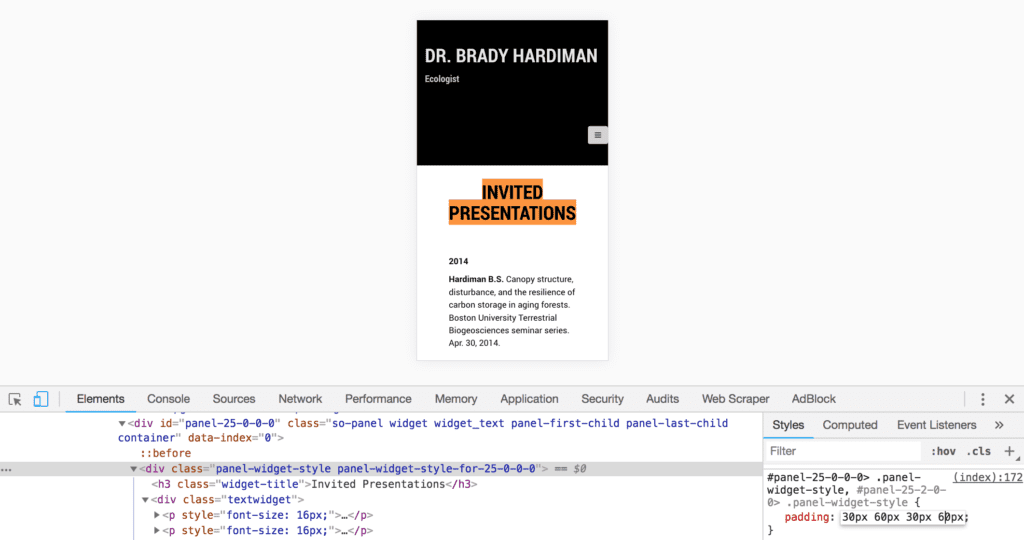
You can decrease the padding right and left down from 70px (your current settings) to 60px on mobile devices. There is another option is to add the rule:
white-space: nowrap;
To your h3 but that would make your title unresponsive.
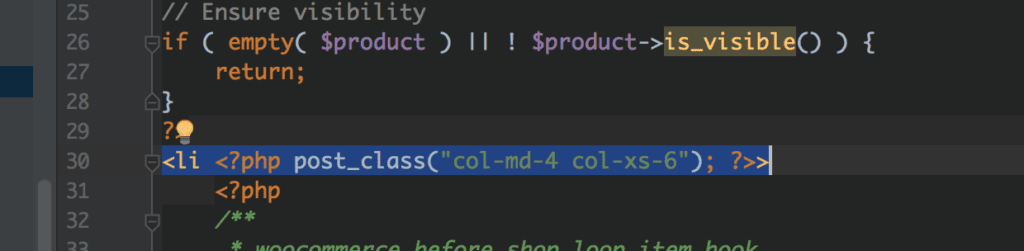
If you need to add class to a single product in woocommerce category page, simply go to plugins/woocommerce/templates and copy the file content-product.php to yourtheme/woocommerce
On line 30, you will see the opening <li tag. This is the start of every product in the category page. Simply enter your tag in post_class and you will have your class appears on the category page.
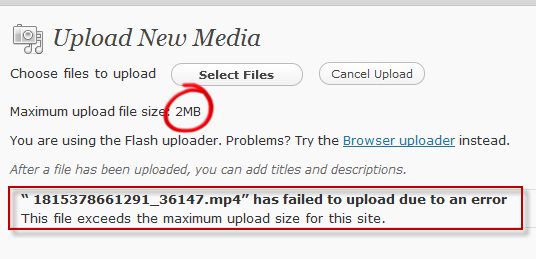
Sometimes you need to install plugins, themes. Maybe for yourself, maybe for clients. Many times, you see this error:
The common way to fix this problem is to use FTP upload or access via cPanel. However, many times we don’t have that luxury.
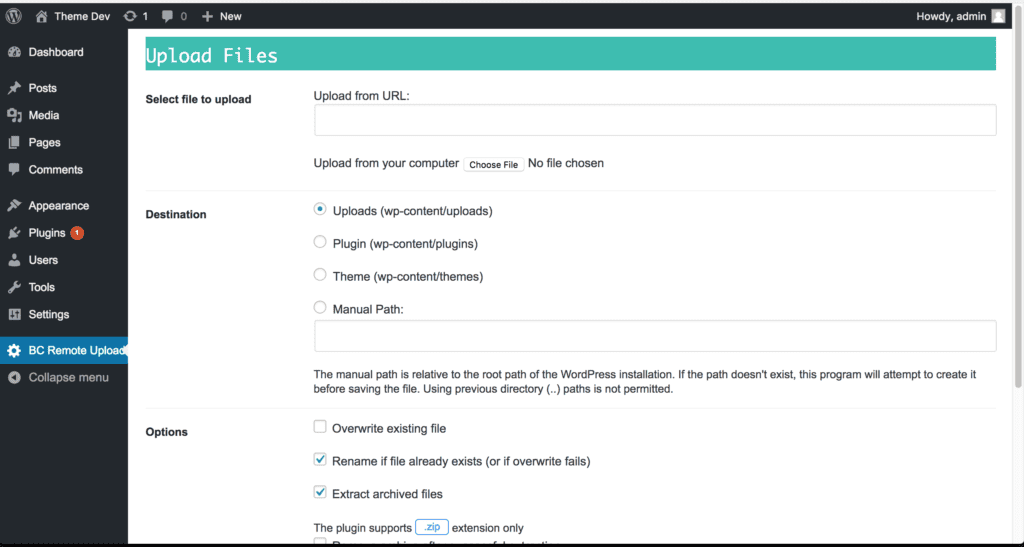
So, this plugin I created based on the the other plugin WP Developer Assistant (An awesome plugin that saved my life countless times but the author haven’t updated for years and it’s not working with php 7). It has one function: allow you to upload files to folders on your servers without touching php.ini, without having access to FTP…
The UI is simple and straightforward. If you don’t know how to use, please let me know.
We use cookies on our website to give you the most relevant experience by remembering your preferences and repeat visits. By clicking “Accept”, you consent to the use of ALL the cookies.
This website uses cookies to improve your experience while you navigate through the website. Out of these, the cookies that are categorized as necessary are stored on your browser as they are essential for the working of basic functionalities of the website. We also use third-party cookies that help us analyze and understand how you use this website. These cookies will be stored in your browser only with your consent. You also have the option to opt-out of these cookies. But opting out of some of these cookies may affect your browsing experience.
Necessary cookies are absolutely essential for the website to function properly. These cookies ensure basic functionalities and security features of the website, anonymously.
Cookie
Duration
Description
cookielawinfo-checbox-analytics
11 months
This cookie is set by GDPR Cookie Consent plugin. The cookie is used to store the user consent for the cookies in the category "Analytics".
cookielawinfo-checbox-functional
11 months
The cookie is set by GDPR cookie consent to record the user consent for the cookies in the category "Functional".
cookielawinfo-checbox-others
11 months
This cookie is set by GDPR Cookie Consent plugin. The cookie is used to store the user consent for the cookies in the category "Other.
cookielawinfo-checkbox-necessary
11 months
This cookie is set by GDPR Cookie Consent plugin. The cookies is used to store the user consent for the cookies in the category "Necessary".
cookielawinfo-checkbox-performance
11 months
This cookie is set by GDPR Cookie Consent plugin. The cookie is used to store the user consent for the cookies in the category "Performance".
viewed_cookie_policy
11 months
The cookie is set by the GDPR Cookie Consent plugin and is used to store whether or not user has consented to the use of cookies. It does not store any personal data.
Functional cookies help to perform certain functionalities like sharing the content of the website on social media platforms, collect feedbacks, and other third-party features.
Performance cookies are used to understand and analyze the key performance indexes of the website which helps in delivering a better user experience for the visitors.
Analytical cookies are used to understand how visitors interact with the website. These cookies help provide information on metrics the number of visitors, bounce rate, traffic source, etc.
Advertisement cookies are used to provide visitors with relevant ads and marketing campaigns. These cookies track visitors across websites and collect information to provide customized ads.
![[Picture Guide] How To Add MailChimp Optin-Box To Your WordPress Sidebar 1](https://binarycarpenter.com/wp-content/uploads/2018/06/mailchimp-dashboard-1024x544.png)
![[Picture Guide] How To Add MailChimp Optin-Box To Your WordPress Sidebar 2](https://binarycarpenter.com/wp-content/uploads/2018/06/select-your-list-1024x544.png)
![[Picture Guide] How To Add MailChimp Optin-Box To Your WordPress Sidebar 3](https://binarycarpenter.com/wp-content/uploads/2018/06/get-the-form-code-1024x544.png)
![[Picture Guide] How To Add MailChimp Optin-Box To Your WordPress Sidebar 4](https://binarycarpenter.com/wp-content/uploads/2018/06/add-a-widget-in-wordpress-1024x592.png)
![[Picture Guide] How To Add MailChimp Optin-Box To Your WordPress Sidebar 5](https://binarycarpenter.com/wp-content/uploads/2018/06/select-html-widget-1024x546.png)
![[Picture Guide] How To Add MailChimp Optin-Box To Your WordPress Sidebar 6](https://binarycarpenter.com/wp-content/uploads/2018/06/paste-the-form-code-in-1024x542.png)
![[Picture Guide] How To Add MailChimp Optin-Box To Your WordPress Sidebar 7](https://binarycarpenter.com/wp-content/uploads/2018/06/see-your-form-1024x542.png)