Category: WordPress

  • How To Create A Poll On Your WordPress Website

    There are times you want to create polls on your website to get your visitors opinions on a specific matter. For example, you have released a book and want to know the readers opinion. You would create a poll like this:

    What do you think about my recent book?

    1. It’s awesome
    2. I don’t like it
    3. Where can I find it?

    Or if you want to find out about the demographics of your blog readers, you will create a poll like this:

    What is your job?

    1. Teacher
    2. Police
    3. Firefighter

    and so on.

    Now, let’s find out how you can create polls like that using free plugin in WordPress.

    How to create a poll in WordPress

    We are going to use a plugin called YOP Poll which you can download freely on WordPress.org.

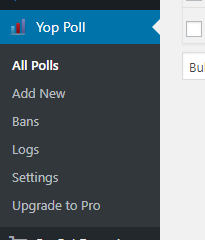
    After installing and activating the plugin, you will notice that there is a new menu item on your dashboard.
    How To Create A Poll On Your WordPress Website 1

    Click on Add new to start creating your poll.
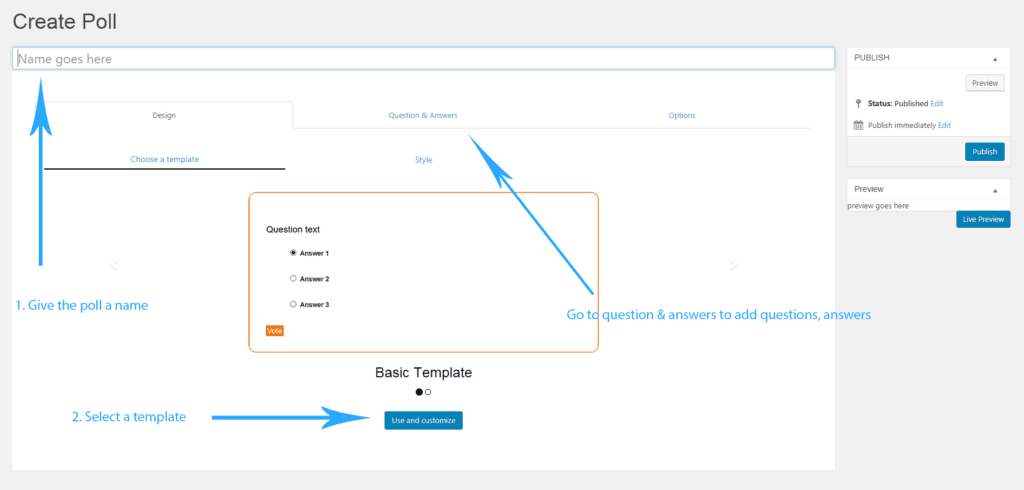
    How To Create A Poll On Your WordPress Website 2


    How to add questions and answers to the poll

    Now, you are in the Question & Answers section, let’s start creating question and answers:
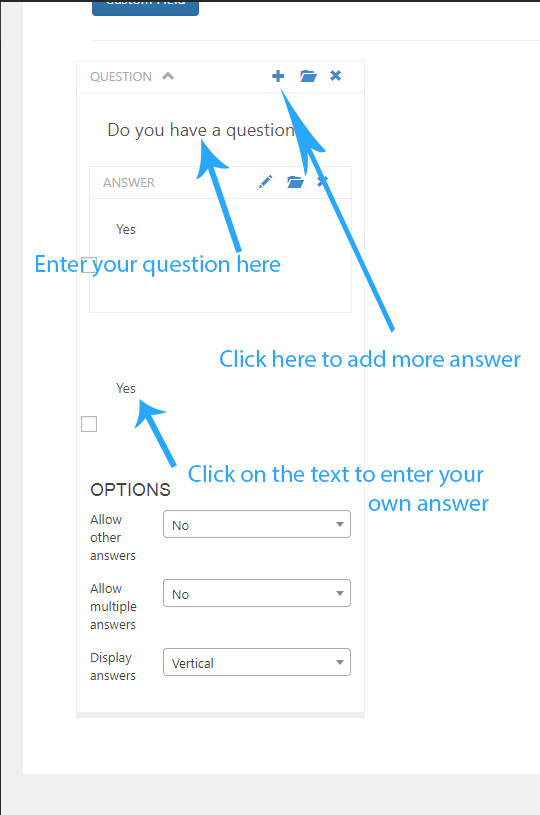
    How To Create A Poll On Your WordPress Website 3

    After entering your question and answers using the form above, let’s go to the options tab to finalize your poll’s settings. From here, you can change the button’s text and other options such as start date, end date and whether you want to use captcha or not (which I think is a very good setting).

    When you are done setting up the poll, click on publish to make it live.

    Now, if you go to YOP Poll->All polls, you will see your newly created poll there. To display it on your posts, simply click on the code button to get the shortcode:
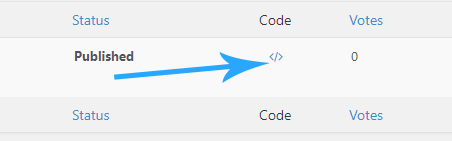
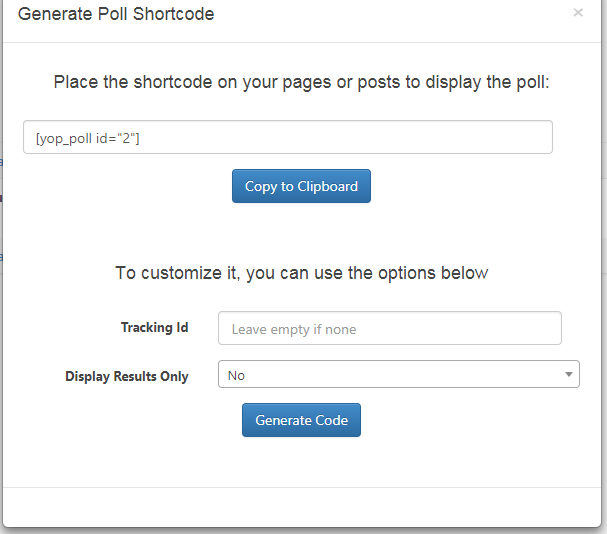
    How To Create A Poll On Your WordPress Website 4

    How To Create A Poll On Your WordPress Website 5


    Now you can paste the shortcode anywhere you need to poll to display. For example, I’ll create a new post and paste the shortcode. Here is the result:
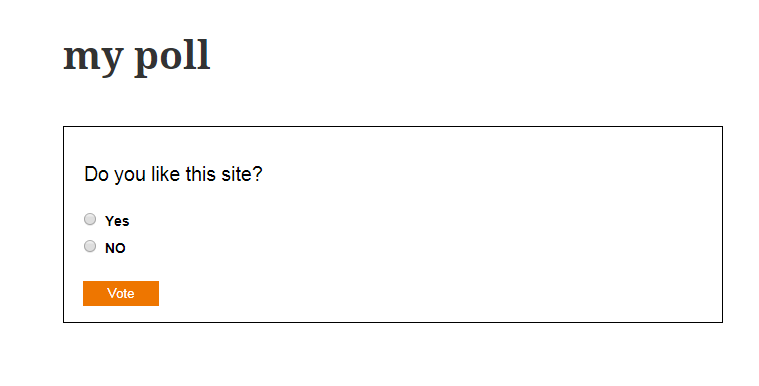
    How To Create A Poll On Your WordPress Website 6

    So, that’s how you create a poll in WordPress. This plugin is very useful for simple poll creation. If you need something more sophisticated such as multiple step polls, you should find a more advanced tool.




  • How To Change The Post Date To Time Amount (x Days/Weeks ago) In WordPress

    How To Change The Post Date To Time Amount (x Days/Weeks ago) In WordPress

    If you have a blog that frequently update, you may want to display the timestamp under the post to the amount of time since the post was written. By default, WordPress displays the date of publish.

    How To Change The Post Date To Time Amount (x Days/Weeks ago) In WordPress 7

    However, you can change this behavior by using a very simple plugin.

    How to change date format in WordPress posts into x days/weeks ago

    First of all, let’s go and download this simply plugin called Meks Time Ago here

    Now, I assume that you know how to install a plugin to your WordPress website. If you don’t, the tutorials are available from a Google search.

    Now you have the plugin installed and activated, if you view your posts now, you will see the timestamp tag under the post has changed to x days/weeks/months ago:


    How To Change The Post Date To Time Amount (x Days/Weeks ago) In WordPress 8


    If you want to tweak the appearance further, go to Plugins and look for Meks Time Ago then click on the Settings link under its name:

    How To Change The Post Date To Time Amount (x Days/Weeks ago) In WordPress 9

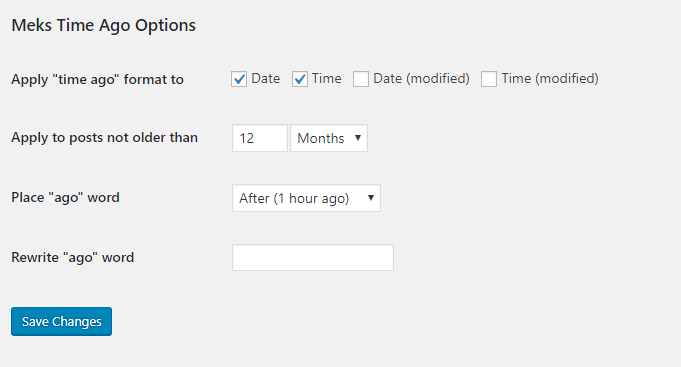
    Now you see that the plugin provides quite a few options:

    How To Change The Post Date To Time Amount (x Days/Weeks ago) In WordPress 10

    By default, the plugin only rewrites the date format to the blog posts which is not older than 12 months. However, you can change this to a much longer period (120 months for example).

    You can also change the ago word to something else. This option is to help you display the time tag in a different language. However, I don’t think this is a complete solution. The developer should integrate the translation option of WordPress into the plugin.

    You can also set the minimum age of the post to apply the tag.

    Improvement suggestions

    I think the plugin does a great job converting timestamp under WordPress posts. However, there are some improvements I would suggest to this plugin to make it even better:

    1. Allows users to add icon (like a calendar icon) to the tag
    2. Integrate with WordPress’s site language
    3. When the visitors hover on the timestamp, the exact date appears.

    Conclusion

    The plugin can use some improvements. However, with the current functionalities, I think it does its job pretty well and a good addition to my list of WordPress plugins.

  • How To Add A Wishlist Button To Your WooCommerce Product With YITH Wishlist Plugin

    How To Add A Wishlist Button To Your WooCommerce Product With YITH Wishlist Plugin

    When shopping online, the wishlist is a important as the cart, maybe more important. The function of the wishlist is to store the items that the customers/visitors want to have but don’t or can’t purchase at the moment. Woocommerce is a great tool to get your online store up and running but it doesn’t come with a wishlist button built-in. Further more, if you want to use the wishlist solution from WooCommerce’s developer, you need to pay for their plugin. Well, if all you need is a tool that:

    1. Allows you to add a Wishlist button to your product page
    2. Displays the wishlist of the shop visitor
    3. Has no limit on how many products your visitors can add to the wishlist

    Then a free solution like YITH wishlist plugin is the right choice for you.

    How to download  YITH wishlist plugin

    The plugin is freely available at WordPress.org here. You can also download it from your admin dashboard.

    How to use the YITH wishlist plugin to create your own wishlist

    Upon activation, the plugin will create a wishlist button for you. As you can see in the image below, the link called “Add to wishlist” was added to my product page by YITH Wishlist plugin. The link is not fancy but surely it does the job. When you click on that link, that product will be added to the wishlist and there is a link for you to view the current wishlist. Notice that in the free version, there is only one wishlist available. If you want to have multiple wishlists for your visitors, consider upgrading to the pro version.

    Now, the plugin is fully functional at this moment. If you are happy with the current result, you can stop here. However, there are some valuable customization you can make the improve the experience much more.

    Customizing YITH wishlist plugin

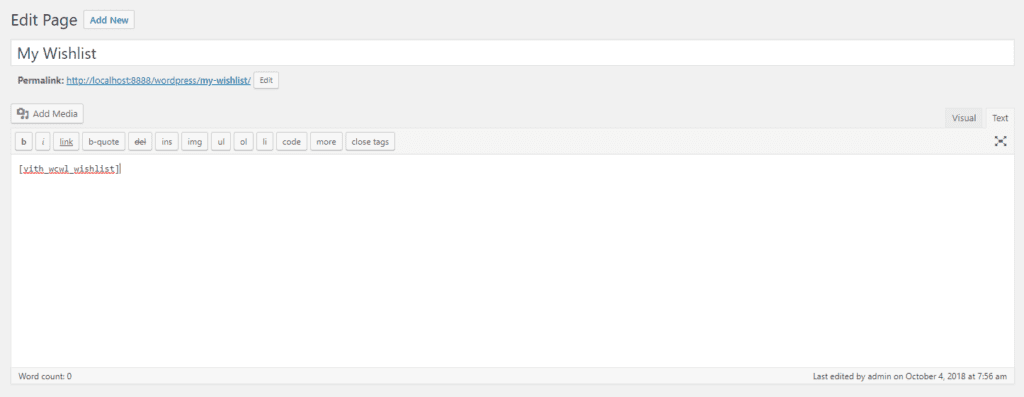
    We will start with by how to change your wishlist page. By default, YITH Wishlist Plugin will create a page for you. However, you can create a new page and set it to the wishlist page if you need too. In order to do that, first, create a page with the following content:

    [yith_wcwl_wishlist]

    As in my case, I created a page (not post) called My Wishlist:

    How To Add A Wishlist Button To Your WooCommerce Product With YITH Wishlist Plugin 11

    After that, we need to go to YITH plugins->Wishlist (in your dashboard). You will see a section called Wishlist Page. Clicking on the select box to select the page you created with the wishlist shortcode above ([yith_wcwl_wishlist]).

    The next time your visitors view their wishlist, they will see that page.

    As you can see, creating a wishlist button/page for your Woocommerce store is not hard at all. YITH wishlist plugin offers basic functionalities that fit most of store owner. If you want to improve the wishlist experience further, you may consider getting your hand dirty with CSS/Javascript or hire a developer to customize the look and feel of the button and the wishlist page.


  • How To Get The Wishlist URL From YITH Wishlist Plugin

    How To Get The Wishlist URL From YITH Wishlist Plugin

    YITH Wishlist Plugin is one of the most popular plugin for Woocommerce to add a Wishlist to your WordPress website. The good thing about this plugin is they make it very simple to add the wishlist button to the product page. If you are a regular user, there isn’t many things else to do. However, if you are a developer, you may wonder how can you get the wishlist URL so you can integrate to your own plugin or theme. That’s exactly what I’m going to show you in this post.

    How to get the add to wishlist URL of a particular product

    If you need nothing else but a working add to wishlist button, you can put this in your code:

    do_shortcode('[yith_wcwl_add_to_wishlist product_id=your_product_id]');

    Make sure you replace your_product_id with actual ID.

    However, YITH wishlist plugin only provide you with the text link like this:

    add to wishlist yith button

    What if you want to remove the text and get just the heart?

    Well, this is how you can get only the URL of the add to wishlist button of YITH wishlist plugin:

    esc_url( add_query_arg( 'add_to_wishlist', $your_product_id ) )

    What you get from this code is an URL. When you go to that URL, the product will be added to their wishlist.

    Pretty easy, isn’t it.

    However, I would recommend you send an ajax request to that url instead of open it. That would improve the visitors’ experience greatly.

    Caution

    One final warning to plugin developers and users of wishlist plugin alike, don’t use multiple wishlist plugins on your site. The reason is because, for example, you installed and activate two wishlist plugin called A and B. There are times you add a product to A’s wishlist and try to view the B’s wishlist page. You will see things that you may not expected. So, remember not to use two different wishlist plugin on one site.


  • How To Set Sale Price For Woocomerce Products

    How To Set Sale Price For Woocomerce Products

    WooCommerce has made selling on WordPress super easy. You can add a product and sell it in just a few minutes. As a common matter of stores, we have sale events. So, how do you set the sale price for your products? Let’s find out.

    The quickest way to set sale price for your product (or to change the sale price if you have already set it) is to go to Products->All products on your dashboard menu. There, you can see the list of all your products. Now, hover your cursor over the product you want to edit the sale price:

    How To Set Sale Price For Woocomerce Products 12

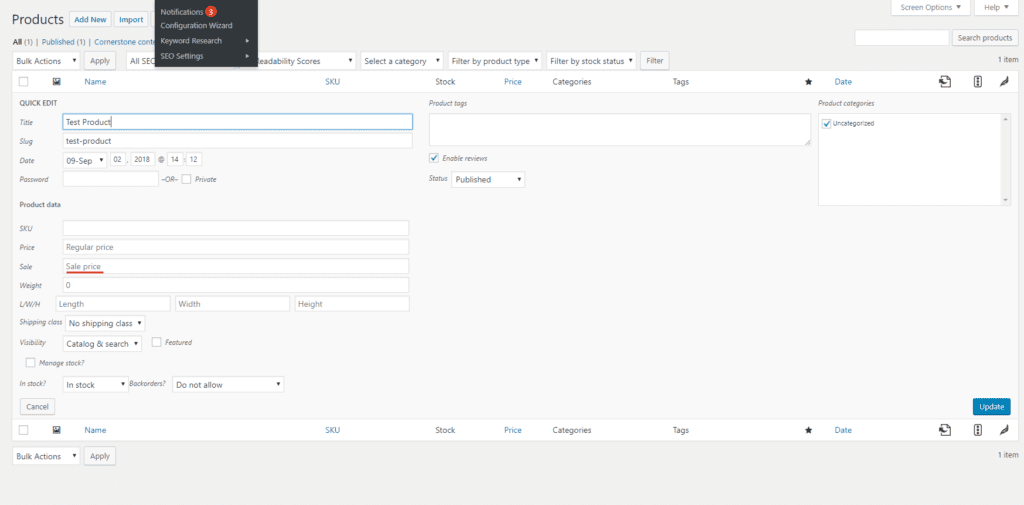
    Now, click on Quick Edit. You will see the quick edit screen appears:

    How To Set Sale Price For Woocomerce Products 13

    As you can see, there is a box for your to enter the sale price. If you set a sale price, make sure you also set the regular price and the regular price must be greater than the sale price (it’s obvious, isn’t it).

    Finally, click on the update button and you are done. Your customers now will see that your product has a sale offer. Hopefully, your sales will skyrocket soon!