Category: WordPress

  • 5 Steps I Made To Get 99% On GTMetrix And How You Can Do It Too

    5 Steps I Made To Get 99% On GTMetrix And How You Can Do It Too

    It’s 2019 and nobody likes a slow website. With Google launching the AMP project, websites now can load in less than 1 second and that number has become the expectation of web users. Website with load time more than 3 seconds are considered slow. If you are like me, you’ve been trying a lot of methods to make your website load faster. However, with many factors contribute to the total picture, it is so difficult to do it manually, even though you are a developer.

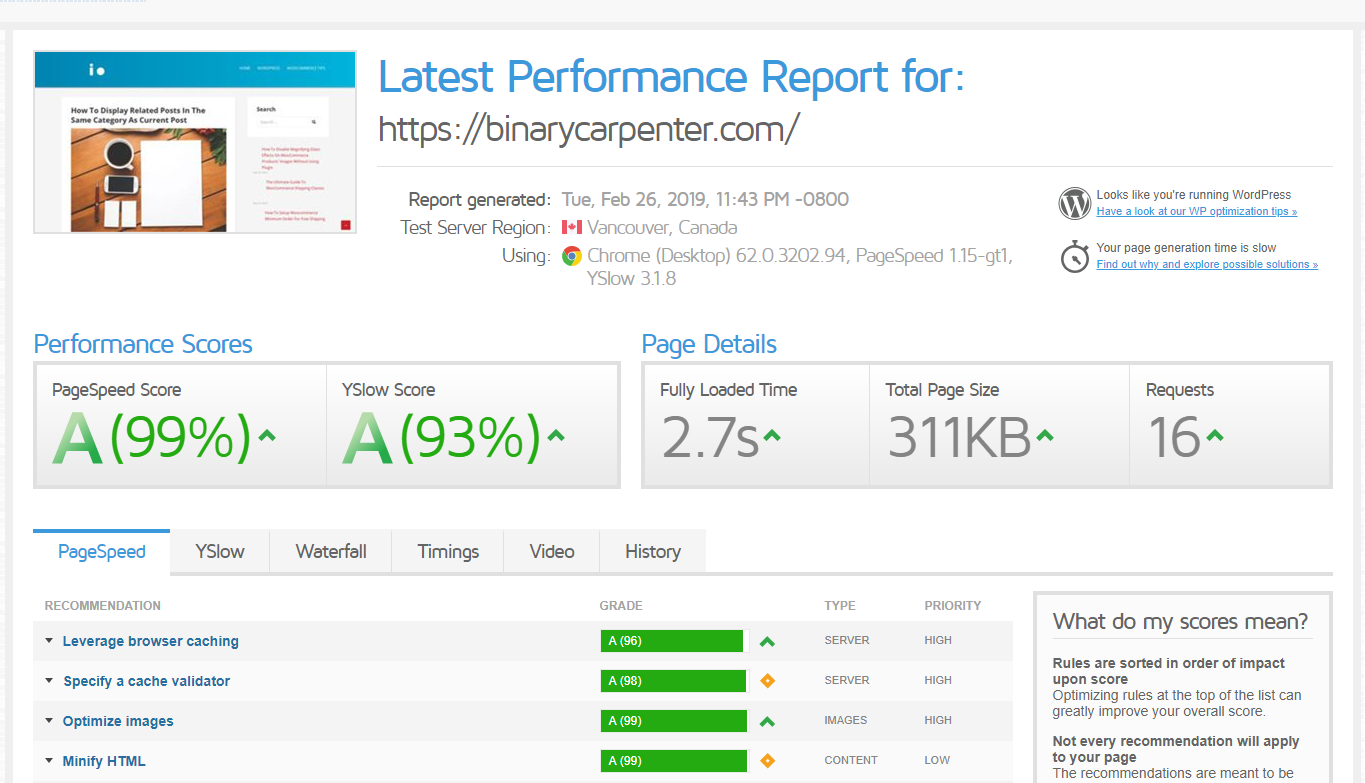
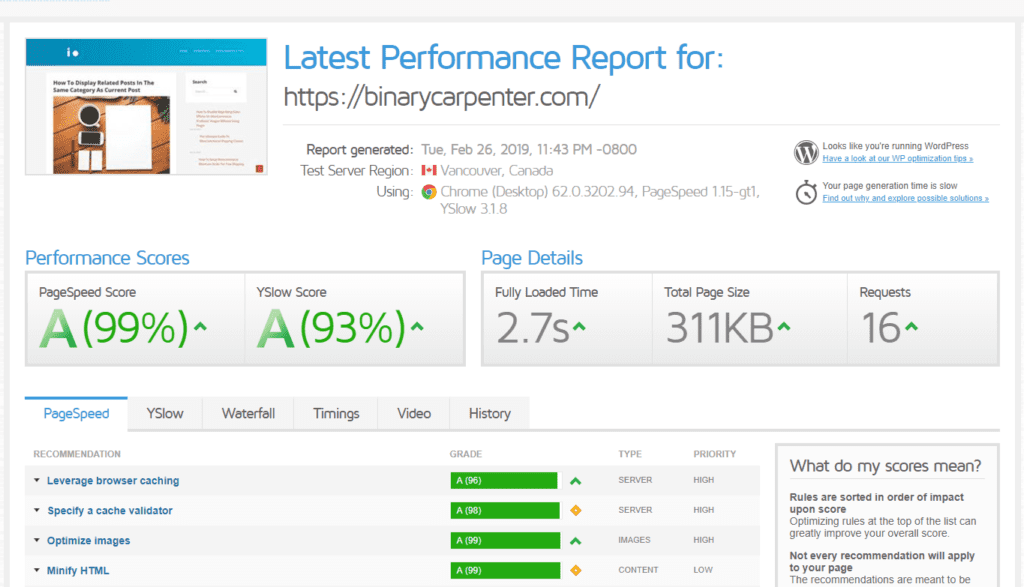
    Before we begin, let me share with you the screenshot of this website (https://binarycarpenter.com/) on GTMetrix.com after being optimized:
     

    binary-carpenter site speed optimization

    You can view the link of the report here.

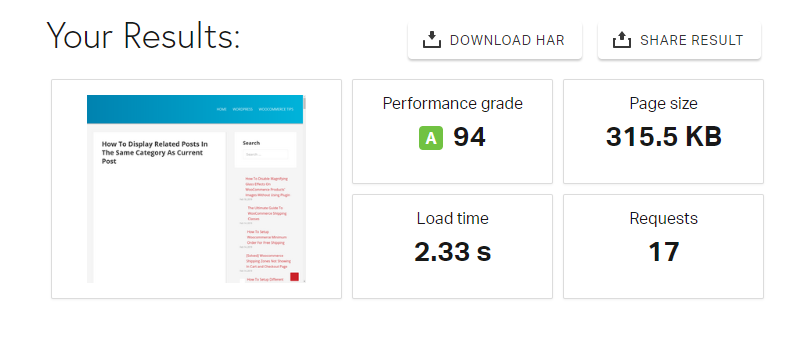
    I also tested the site on pingdom tools:
    5 Steps I Made To Get 99% On GTMetrix And How You Can Do It Too 1

    This is the result I achieved without using a CDN. If I used one, the YSlow score should be higher.

    Now, let’s walk through steps that I did to achieve this.

    Optimize all images with Smush Pro

    Nearly 68% content of the web are images. This fact sound crazy but if you think about it a bit, you will see it’s quite reasonable. On blogs like this one, the content are text and images. Text doesn’t contribute much in term of size. Images are more prevalent in e-commerce sites where sites’ owners need to show many products’ images. If you don’t optimize your images well, your web page can be pretty big, up to several MB or even more.

    Heavy websites load slower, no matter how fast the connection and powerful your server is. Slow websites drive visitors away, no matter how good your content or product are.

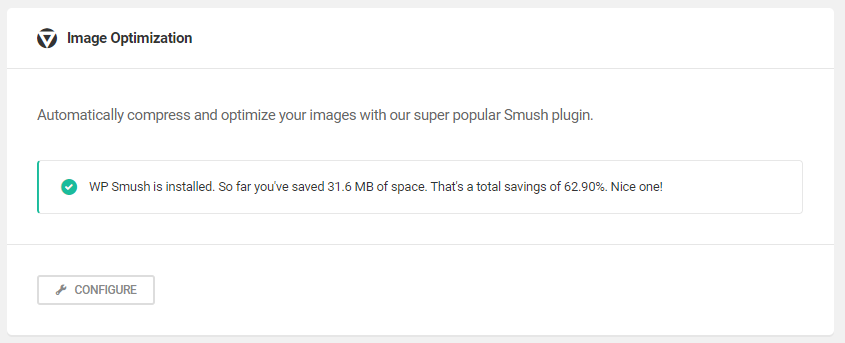
    As you can see from my blog, I write a lot of tutorials. Many of them use screenshots to demonstrate the steps. That’s why I need to optimize my images badly. Downloading the images and optimize them then upload back to the server is not an option. Thus, I use Smush pro from WPMU dev. The plugin goes through all my images and optimize them to make their size small while preserve their quality:
    5 Steps I Made To Get 99% On GTMetrix And How You Can Do It Too 2

    All images are optimize with just a simple click.

    Minify CSS, JS, HTML, enable caching with Hummingbird Pro

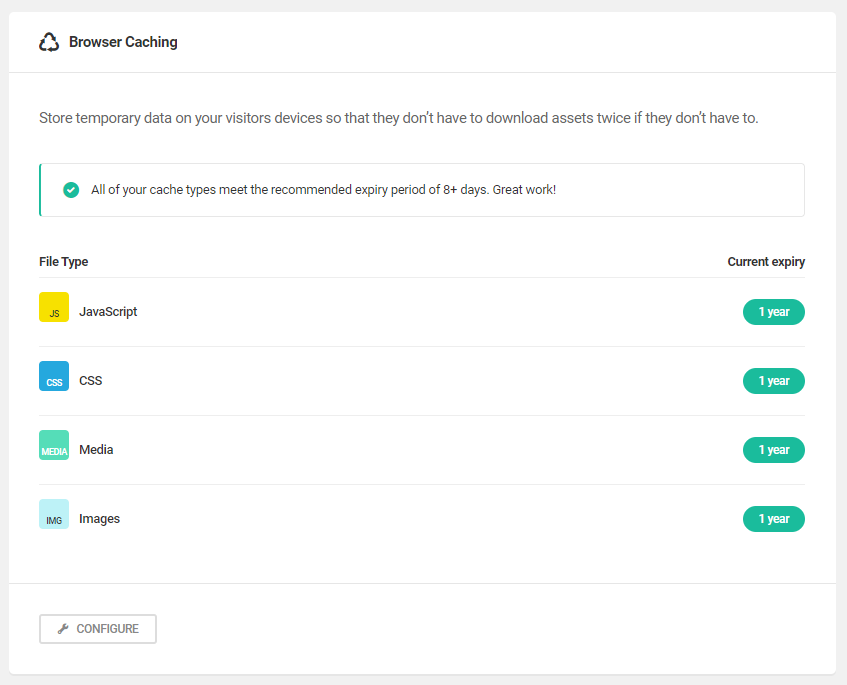
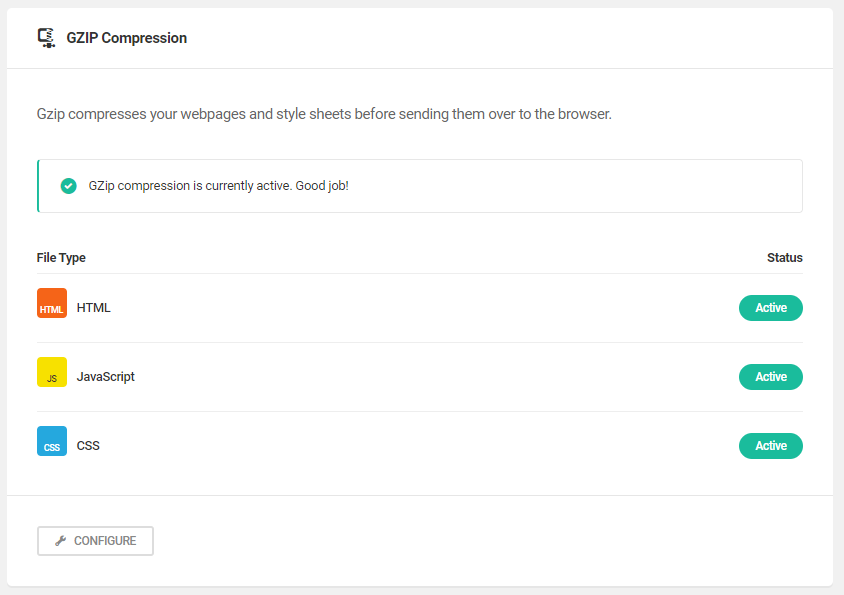
    Honestly, there are many plugins can minify CSS, JS, HTML and combine them. One good example is W3 Total Cache. However, no other tools come close to Hummingbird Pro in terms on user interface. I love the design and the simplicity it brings to the users. I just need a few clicks to make the assets (CSS, JS, HTML) on my site minified. The plugin also support caching (again, you can achieve this with other plugins too but probably takes you more time).
    5 Steps I Made To Get 99% On GTMetrix And How You Can Do It Too 3

    5 Steps I Made To Get 99% On GTMetrix And How You Can Do It Too 4

    Avoid unnecessary image, iframe loads with a3 Lazy Load

    If your site has many images, enable lazy loading for your images is super important. Lazy loading is a technique that prevent images from loading if they are not needed. Sounds complicated? Actually, it is very simple. For example, you have 10 images on your blog post. One visitor comes to your post and read a few seconds then quit. He sees only two images before quitting. If you don’t have lazy loading enabled, all 10 images on that blog posts are loaded.

    However, if you enable lazy loading, only the visible images are loaded. As a result, you save the bandwidth for that 8 images that the visitor never sees.

    Enabling lazy loading also reduce page’s size, which makes your site load faster.

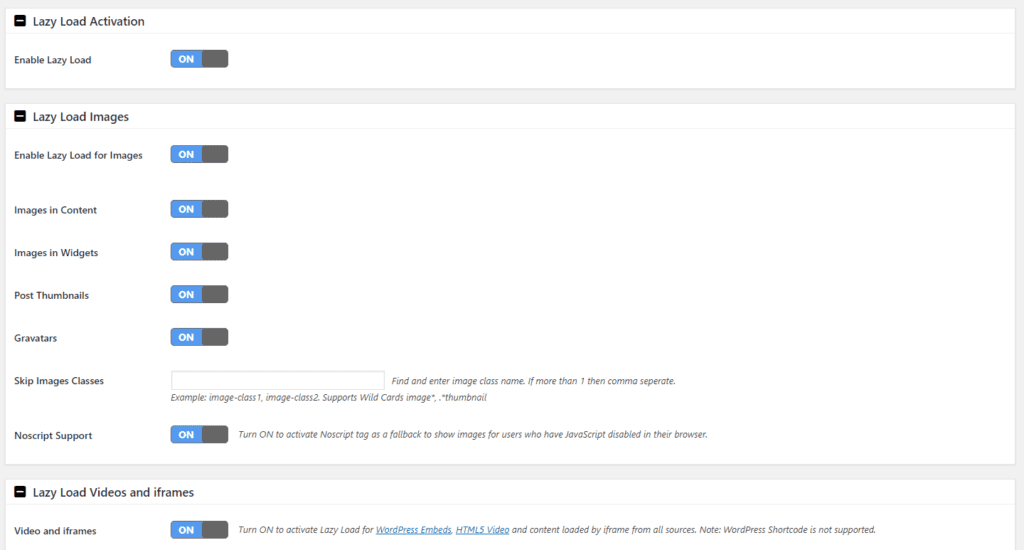
    Here is my a3 lazy load settings:
    5 Steps I Made To Get 99% On GTMetrix And How You Can Do It Too 5

    Make less requests with Fast Velocity Minify

    Hummingbird pro does a good job minifying css and js and even combine some of them together. However, Fast velocity minify goes a step further. You can see from the screenshot below:

    Number of requests when Fast velocity minify is NOT enabled:
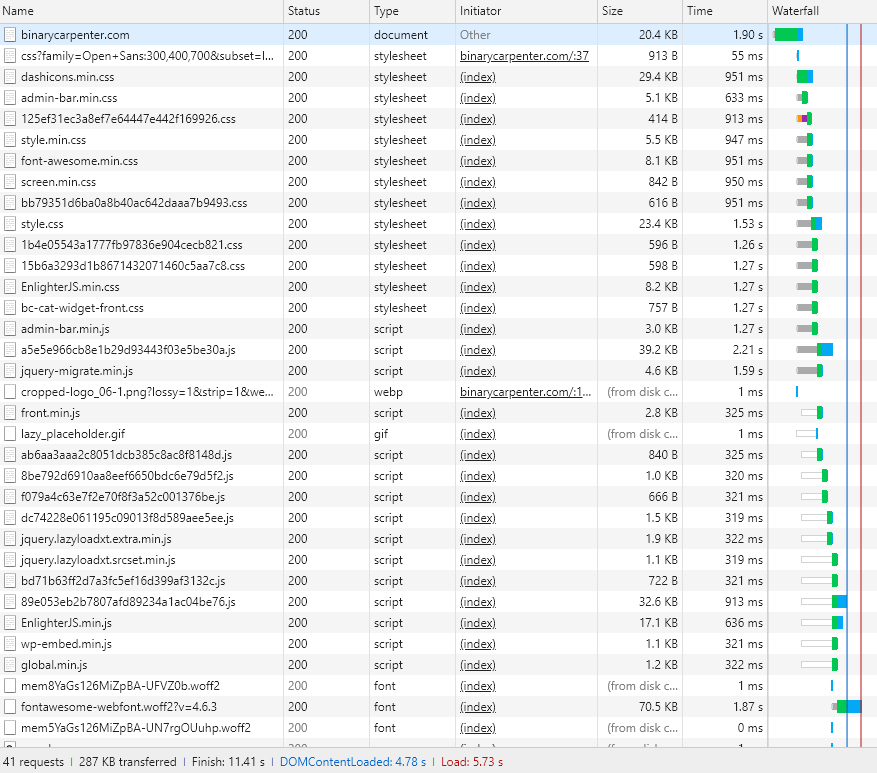
    5 Steps I Made To Get 99% On GTMetrix And How You Can Do It Too 6

    There are 41 requests total.

    Let’s see the number of requests when I have this plugin enabled:
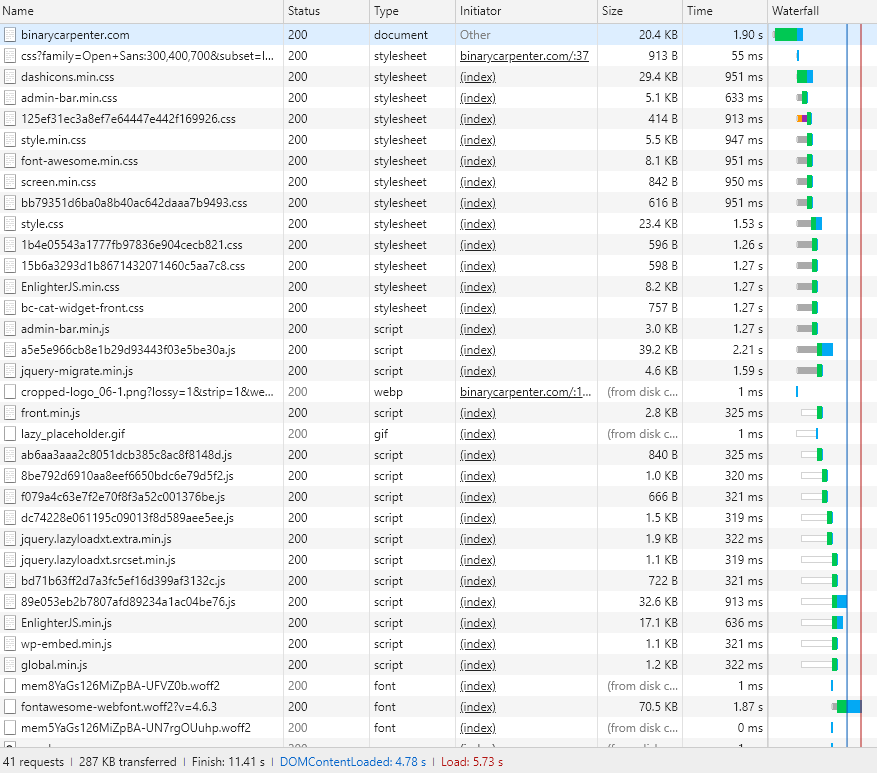
    5 Steps I Made To Get 99% On GTMetrix And How You Can Do It Too 7

    The number of requests dropped to just 15. That’s awesome!

    Deactivate plugins that you don’t really need to save requests

    One of the most effective way to improve your site’s speed is to get rid of plugins you don’t need. Plugins can add some cool features to your site. However, you should go through your plugin list and find out the one that isn’t vital to your site to get rid of them. One good example is the Add this plugin (that displays a floating social bar on your website). While it makes your site look nice and help your visitors share your content on social network easily, it contains heavy javascript and css resources that make your site load slowly. In addition, you should consider using a SEO optimized theme. Not all WordPress themes are created equal. From my experience, there are themes that have an amazing look but under the hood, they use so many external libraries that make the site super heavy, even without images. You definitely want to avoid those themes.

    Conclusion

    This is my personal experience with my site. The concept works in general. However, you may not achieve the exact result. I hope you can apply the tips in this post and make your site load much faster.

    All plugins in this post are free except Hummingbird pro and Smush pro. The membership from WPMU Dev cost $49/month. However, if you are interested, I can set you up a super sweet deal that cost only $49/year with 2 months free test. Let me know if you are interested in the comment below.

  • How To Display Related Posts In The Same Category As Current Post

    How To Display Related Posts In The Same Category As Current Post

    If you have been blogging for a while, you may face this problem with related posts widget. You have many categories, each of them has a decent number of posts. Currently, your related posts widget display posts from various category. What if you want the related posts widget to display only the posts that have the same categories as the current post? Sounds difficult to understand? Let’s have an example.

    For example, you have two categories: Movies review and book reviews. Currently, if you visit any post of either category, you will see posts from both Movies review and Book reviews. What if you want to see only posts from Movies review when you visit a post in that category (and the same with books review)?

    Well, I searched for a plugin that could do this job but couldn’t find one. Finally, I decided to create a plugin to accomplish this and surprisingly, it costed me only a few hours. I haven’t uploaded it to w.org.

    However, you can download from here

    How to use the plugin?

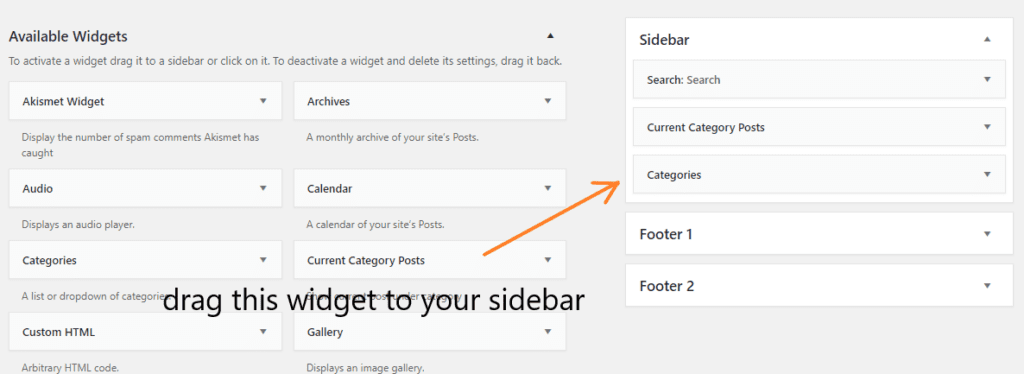
    It is quite easy to use the plugin. Please go to Appearance->Widgets and drag a widget called Current Category Posts to your sidebar:

    How To Display Related Posts In The Same Category As Current Post 8

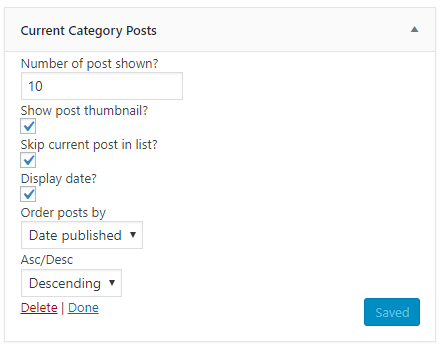
    Then, click on the widget (Current category posts) and you will see all the available options:

    How To Display Related Posts In The Same Category As Current Post 9

    As you can see, we have a few options here:

    1. Number of post shown: the maximum number of posts you want to show on the widget. You can set this number to any of your liking. I currently set 10 for this blog
    2. Show post thumbnail: Whether to show posts’ thumbnails or not. If you have thumbnails for most of your posts, this option should be checked
    3. Skip current post in list: Do you want to display the current post (the post that you are viewing) or hide it? If this option is checked, you will see the current post on the widget
    4. Display date: Do you want to display the date of the post (publish date)? Check if you want
    5. Order posts by: What kind of order you want for the post list? Currently, you can order the posts by name, date or a random order.
    6. Asc/Desc: Based on your selection on Order posts by, this option let you arrange the post by ascending or descending order

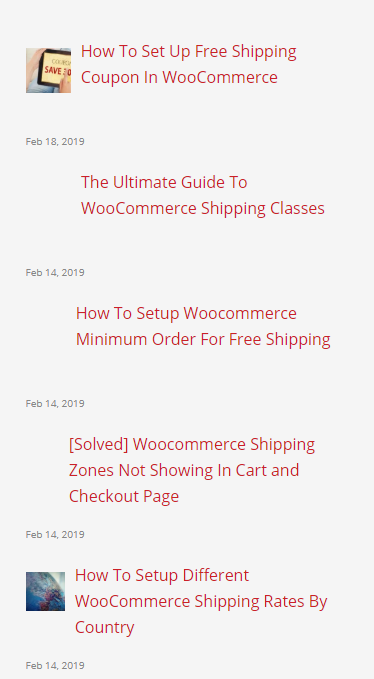
    After setting up the widget, here is the result:

    How To Display Related Posts In The Same Category As Current Post 10

    Now, as you are reading this post, you can go to any categories and see the posts on sidebar change based on the category of the posts you are reading. For posts that have multiple categories, posts from all of their categories are included.

    Some ideas for improvements

    Currently, I set the image to have 70px * 70px. This is quite a rigid limitation. I’m thinking about letting the user choose the size of the image. Also, the styling is quite basic. It may be ideal to have a several themes for users to choose from. Finally, for posts that don’t have a featured image, users should have the option to set a default image. If you have ideas or suggestions, please let me know. I appreciate that!

  • How To Remove Nofollow Attribute On WordPress Comments Link (Author URL and Comment’s URLs) Update 2019 Without Using A Plugin

    If you are searching for this, I assume that you don’t need any further introduction on nofollow and dofllow links. The nofollow attribute is added to links to prevent spam. However, there are times that you want to remove it to encourage comments from your visitors. In this post, I’m going to show you how to remove nofollow attribute from links at the comment section of WordPress.

    How to remove the nofollow attribute from author’s name link

    Here are the steps we are going to do to make the author’s name link become dofollow:

    1. Go to your theme’s function.php file
    2. Get to the bottom of that file
    3. Add the following code
    add_filter('get_comment_author_link', 'binary_carpenter_remove_nofollow', 10, 1);
    
    function binary_carpenter_remove_nofollow($content) {
       $content = preg_replace("/(<a[^>]*[^\s])(\s*nofollow\s*)/i", "$1", $content);
       $content = preg_replace("/(<a[^>]*[^\s])(\s*rel=[\"\']\s*[\"\'])/i", "$1", $content);
       return $content;
    }

    Now, if you save the file, you will see the nofollow attribute disappear in the link.

    Let’s see the code in action:

    As you can see that, after the code was inserted, the nofollow attribute was gone.

    How to remove the nofollow attribute from links in the comments’ content

    We can use the same strategy to remove the nofollow attribute from links that are located in the comments’ content. However, this time, you will need to add another filter. If you have added the function  binary_carpenter_remove_nofollow in the functions.php file, there is no need to declare it again.

    Here is the code to remove the nofollow from comments’ content’s links:

    add_filter('comment_text', 'binary_carpenter_remove_nofollow');

    And that’s all you need to do to remove the nofollow attribute.

    Conclusion

    As you can see, the nofollow attribute is a useful tool to fight spam (spammers tend to not leaving a link on your site if it’s nofollow). However, if you have good reasons to make the links dofllow, you have the method to do so without using a plugin.

    I hope the post has been helpful. Please like and share if you find it valuable. Thanks!


  • Hide Header and Footer In Elementor Within ONE minute

    Hide Header and Footer In Elementor Within ONE minute

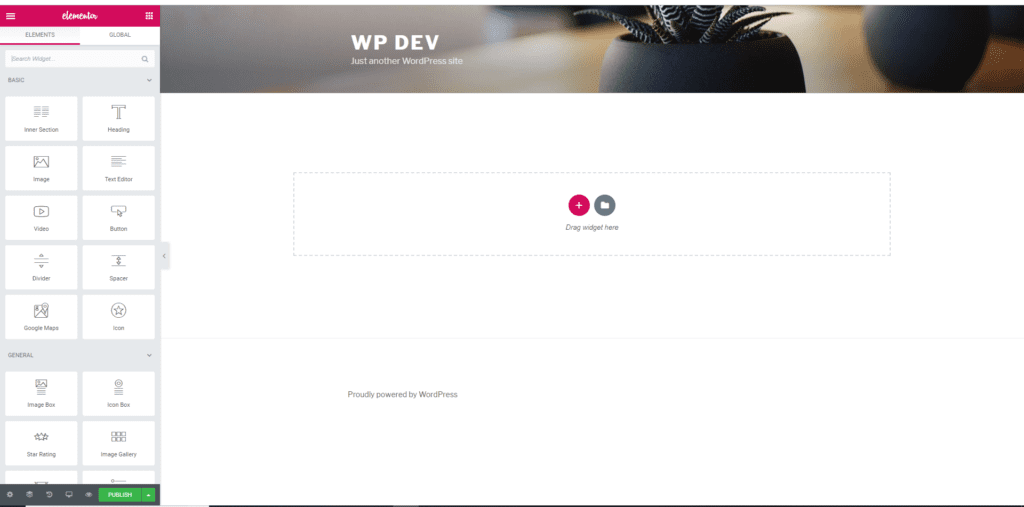
    Elementor is awesome. That comes from a user has just begun to use the tool. However, when you start creating a page with Elementor, you may see the default header and footer from your theme. In my case, I use twenty seventeen theme and the editor would look like below. As I am going to create a dedicated page, I would like to hide header and footer in Elementor. What can I do about that?

    default page template wordpress

    Why does this happen?

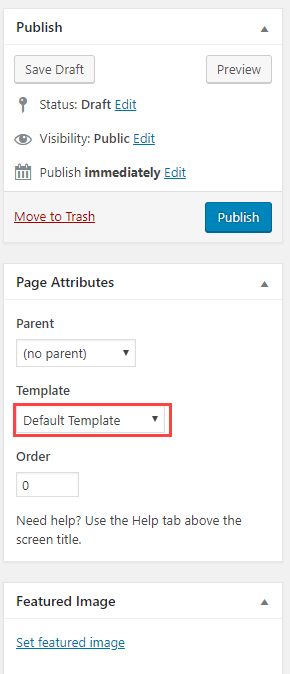
    Elementor uses the default template file from your theme. In the default template file of most themes, there are header and footer. That’s why you will see the header and footer of your theme in Elementor’s editor. If you deactivate Elementor, you would see the page template at the right sidebar:

    Hide Header and Footer In Elementor Within ONE minute 11

    Now, as you may guess, the solution would be using a different page template that doesn’t contain your theme’s header and footer. That’s what we are going to do.

    How to hide header and footer in Elementor

    Update Mar-24-2019

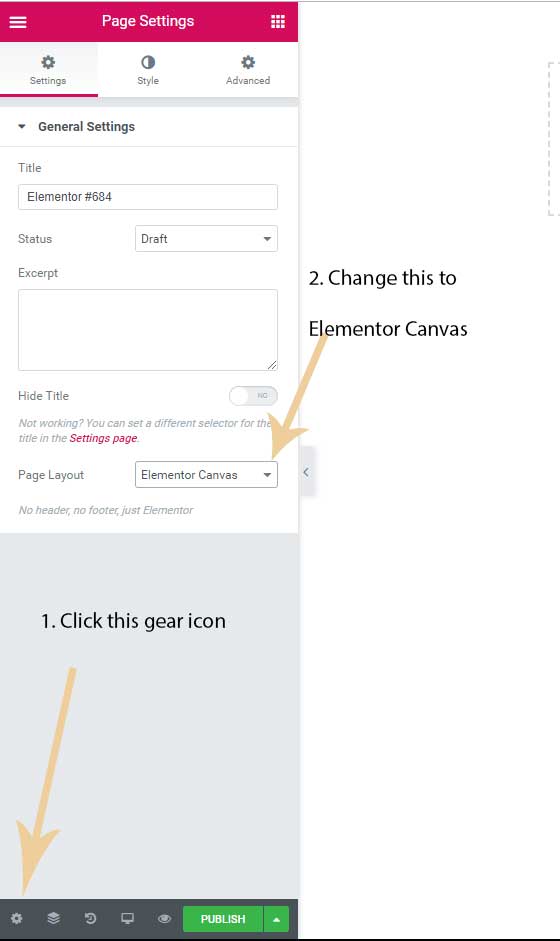
    Elementor has enabled default support for this feature. All you need to do is following this picture:

    Hide Header and Footer In Elementor Within ONE minute 12

    If you still have problem following the method above, let’s continue:


    Here are what we are going to do:

    • Install a plugin called Blank Slate
    • Go to your page/post created with Elementor
    • Edit its template to use Blank Slate

    Let’s go into more details below.

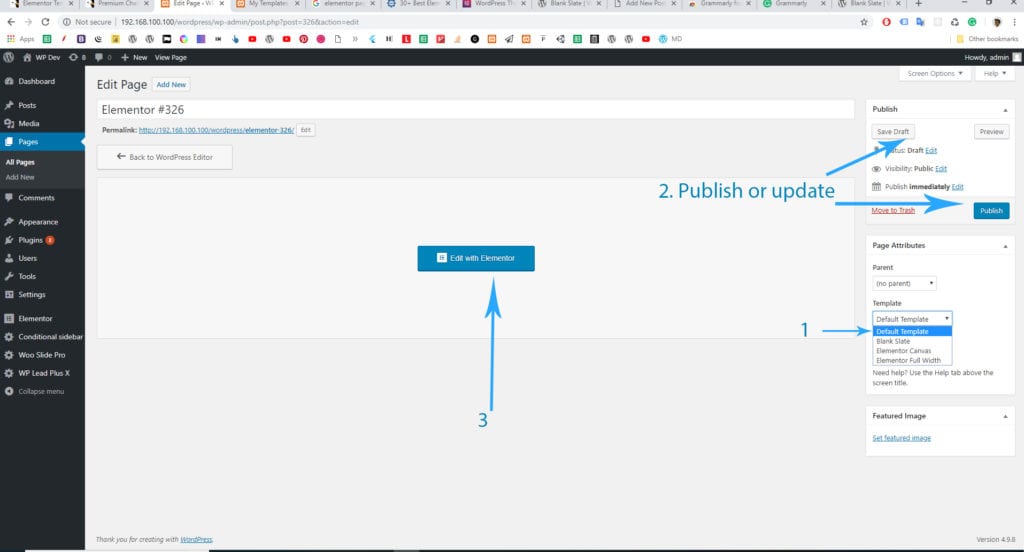
    As mentioned above, we need a template file that doesn’t have the theme’s header and footer. If you know a bit of PHP, you can do it easily. However, for people who don’t know code, that would be a difficult task. What we are going to do is simple for everyone. We are going to install a plugin that creates that template for us. The plugin is called Blank Slate.

    After installing and activating the plugin, if you go back to edit your page and click on the page template select box, you will see there is a new template file called Blank Slate. That’s what we are going to use. All you need to do next is to click on publish (or save draft) and click on edit with Elementor:

    Hide Header and Footer In Elementor Within ONE minute 13Hide header and footer in Elementor


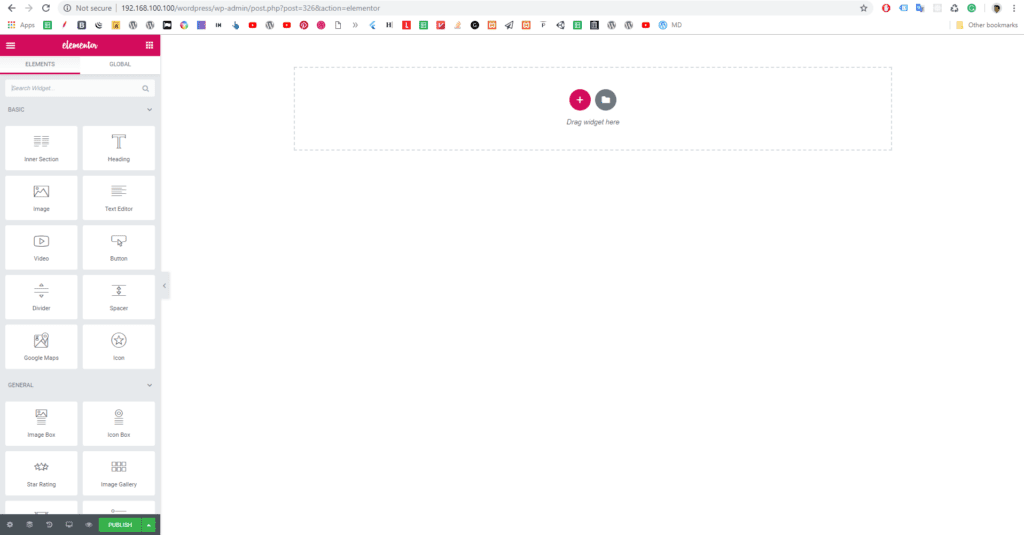
    Now, you can see that in Elementor, there isn’t header or footer:

    Hide header and footer in Elementor

    That’s it! You’ve successfully hidden the header and footer for your Elementor editor. It’s time to create some awesome pages with this page builder. If you enjoy my WordPress tips, don’t forget to share this post.

  • How To Limit Max Order Quantity In WooCommerce

    How To Limit Max Order Quantity In WooCommerce

    As a shop owner, you may want to sell as many items as possible. However, there are cases you want to limit the number of items a single customer can purchase. The reasons can vary: maybe you have limited stock, maybe you don’t want a single customer stocks many items and reseller it later with much higher price… Whatever the reason, you will feel the need for a function to set the maximum number of item per product that a single customer can purchase. The good news is, there is a solution for that and it’s totally free.

    Meet the plugin that enable max quantity of items that a single customer can purchase PER PRODUCT

    Remember, the limit is PER PRODUCT (I’m sorry for the uppercase but this is important). For example, you have leather bag and plastic bag. You can set the quantity limit for leather bag is 2 and plastic bag is 3. So, your customer can order up to 5 items total but she cannot buy more than 2 leather bags or 3 plastic bags.

    Now, let’s install this plugin called Woocommerce Max Quantity

    Installing the plugin is very straightforward. You can search the plugin by entering its name in Plugins->Add new. You may need to scroll down a bit to see the plugin since at the time of this writing, it stays at the bottom of the first page.

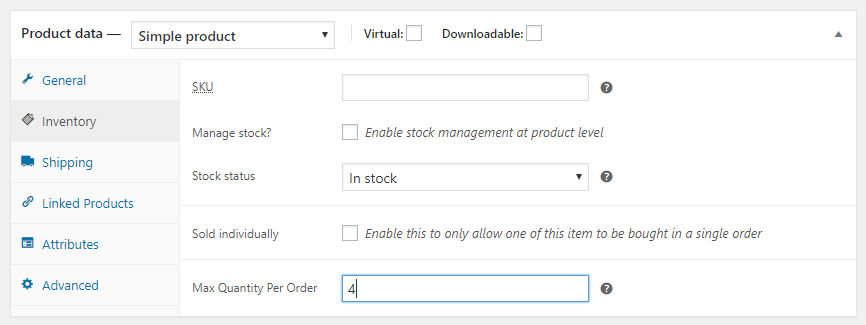
    After activation, go to the product you want to set the limit. Click on Inventory tab. You will see there is a new box appears to enable the max quantity. In the example below, a single customer can only purchase 4 fake lamborghini cars from my store:

    Set max quantity for single customer on a product

    Now, update the product and let’s go to the product page and try to order more than 4 items:

    Max Quantity order per item Woocommerce

    As you can see, the store sends a notice to customer when she tried to order more than the limit.

    Conclusion

    The plugin does a great job setting the limit for the order per single product. If any improvement needed, I think that’s a function to display the limit right below the order button so the customer can see the limit right before she enters the order quantity.