WooCommerce comes with a few shipping methods and with plugins, you can add more. So, you can have literally unlimited shipping options. Having multiple shipping methods seems to be a good thing since it gives the customers more options. However, if you know that your customers will use only a certain shipping methods, having more than that can cause confusion. In this post, we are going to find out how to disable a shipping method in Woocommerce so your customers will have only the methods that suit them.
How To Disable A Shipping Method In Woocommerce
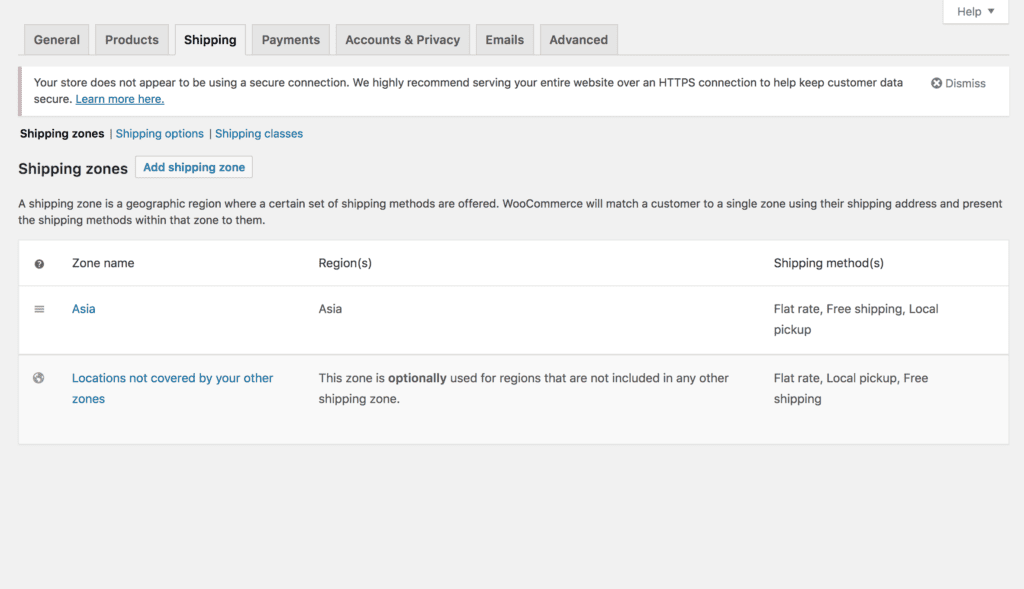
First, go to Woocommerce->Settings and click on Shipping.
In the first screen, you can see the list of shipping zones. If you don’t know what shipping zones are, they are the area you can define to apply different shipping policies. This is a very nice option of WooCommerce. For example, you want to apply free shipping in Asia and a flat rate $10 in Europe, you can add two zones Asia and Europe and apply the appropriate shipping methods to those zones.
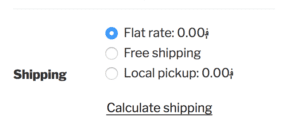
Now, one zone can have multiple shipping method. For example, my customers in Asia will see this when they checkout:
Pretty confusing, right? Now, I would like to remove the Free shipping option, here is what I’ll do:
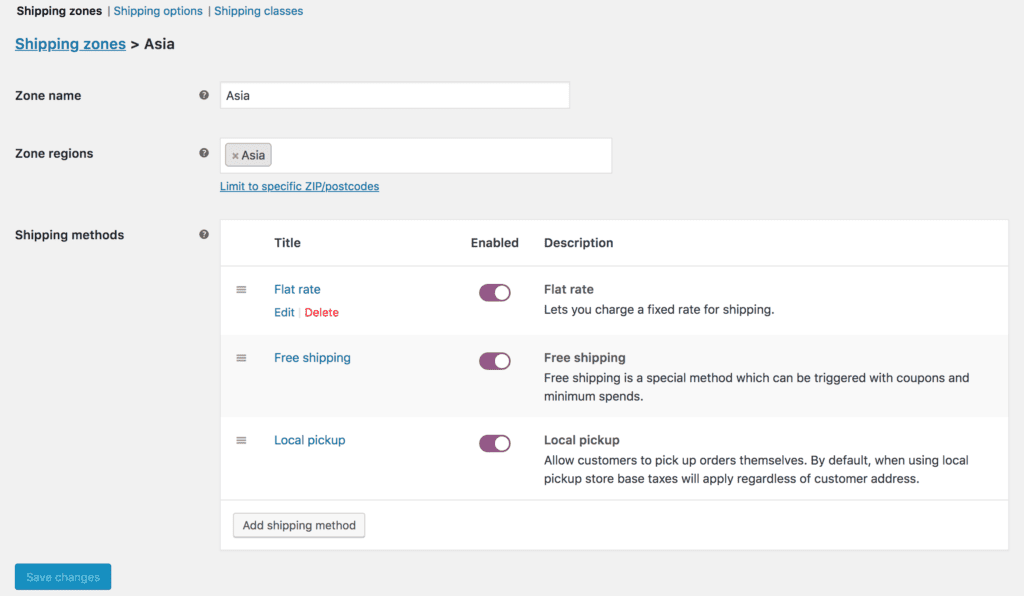
Click on the shipping zone I want to modify its shipping methods, in my case, I will click on Asia.
As you can see, all the options are listed in the next screen. To disable any shipping method, simply click on the toggle button to turn it off. Here, I’m going to turn off free shipping. Don’t forget to click on Save changes.
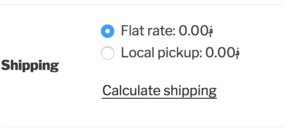
If I go and check the checkout page now, the Free shipping method is no longer available:
That’s it! Now you know how to enable and disable a shipping method for a particular zone in Woocommerce. Thanks for reading and if you have any comments, please leave it below.
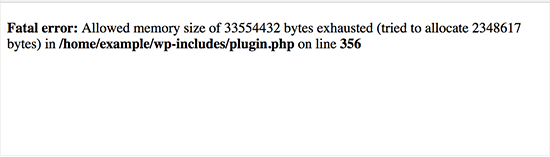
Setting up your WordPress blog is easy. With an affordable hosting, you can have you site up in just a few minutes. When you first start out, your site may have little traffic and it runs smoothly. However, when your site get popular and you get more traffic, you may encounter this message when you open your site:
You cannot view your beautiful site anymore and so as your visitors. What is the cause and what can you do to fix it?
What is the cause of Allowed memory size of … bytes exhausted?
As the error message suggests, your WordPress site has used up all the allowed memory. For example, your server settings allocated 32MB for your site to run. However, due to high amount of traffic to your site, it used up all the 32MB. Thus, there is no more memory left for your site to continue running. That’s the reason why you see that message.
How to fix this problem?
As you can see, the cause is lack of memory so the fix should be to increase the amount of allowed memory for WordPress to run. It sounds very simple, however, it is not always the case.
Why so?
The reason is this problem usually occurs on cheap hosting, where the hosting providers usually allocate a small amount of RAM for their users. You must ask your hosting provider to increase the allowed memory for your WordPress site. If they don’t agree to do so, you are out of luck.
However, in case they agree to increase your memory limit, you can do the following steps to give your site more memory to run.
Going to your site by using cPanel/FTP/SSH
Open wp-config.php
Put this line:
define( ‘WP_MEMORY_LIMIT’, ’64M’ );
right above the part says: /* That’s all, stop editing! Happy blogging. */
You can replace the number 64 to a higher one if allowed. For a blog that gets a lot of traffic, you may need to set the limit to 512M or even more.
Then, save the wp-config.php file and you are done. Your WordPress site now have more memory to operate. Make sure to monitor your site closely to see if you still have this error. If you still get this error, you can increase the limit once again. In case the memory limit that your hosting provider gives you is low, you should consider upgrading your hosting plan to a VPS.
Woocommerce comes with quite many currencies. In fact, if you are selling items internationally, you got a plenty of options to choose from such as USD, GBP, EUR or even BTC (bitcoin). However, there are a lot of currencies isn’t in that list. For example, what if you want to accept ETH (Ethereum) as your currency? Don’t worry, we can make that work.
Check if your currency is supported by Woocommerce
Woocomemerce is updated frequently. Thus, chances are your currency get added in the latest release. The first thing you need to do is to:
Update Woocommerce to the latest version
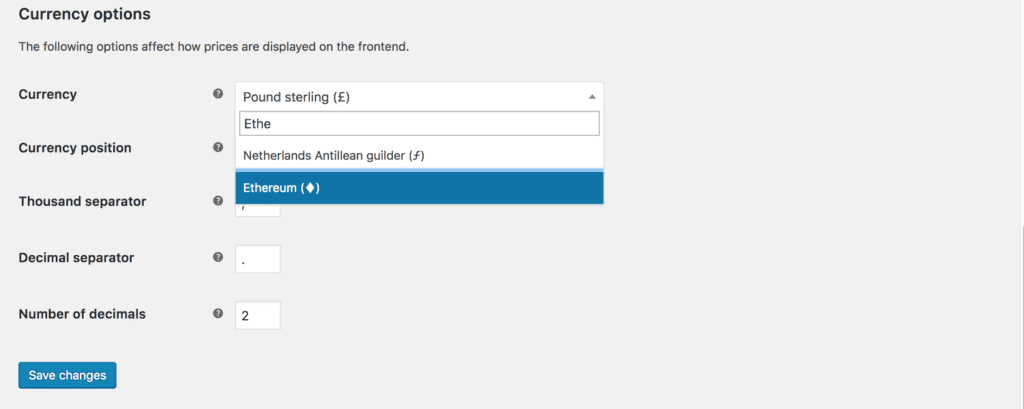
Go to Woocommerce->Settings->General->Scroll to the bottom to see the currency options. You can see the list of supported currencies there
If your desired currency is in the list, that’s great! You don’t need to do anything else. If it isn’t, read on.
Introducing the necessary hooks
If you are unfamiliar with the term hooks, you can take a look at the official document here. However, it is not necessary to understand it thoroughly to add new currencies to Woocommerce.
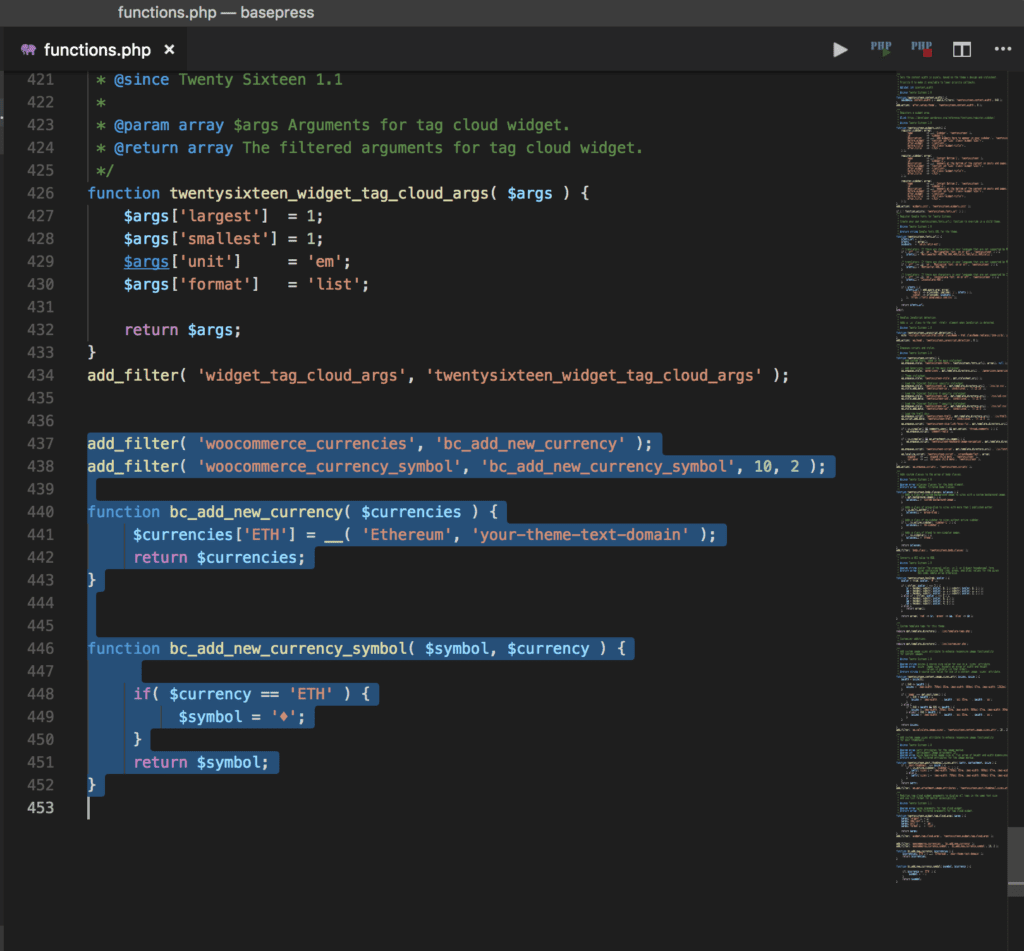
There are two filter hooks you need to use to add new currency to Woocommerce
woocommerce_currencies
woocommerce_currency_symbol
As the names suggest, the first one will be used to register new currency and the second one will be used to register the currency’s symbol.
The actual code
I’m going to register the Ethereum currency to Woocommerce. However, you can define and add any type of currency you want. You can even invent a currency that isn’t available right now.
Changing URL is something you shouldn’t do frequently because of SEO. However, there are times you need to change the URL to reflect the content of your pages/posts.
In WordPress, you can choose to include the category in the URL. For example, my permalink structure is:
category in permalink
Then my post URL will container the category. For example, I have an article in the World News category. The URL of that post will be
Now, for example, I would like the change the world-news into breaking-news. How would I do that?
Let me show you how.
How to change the category in your post URL
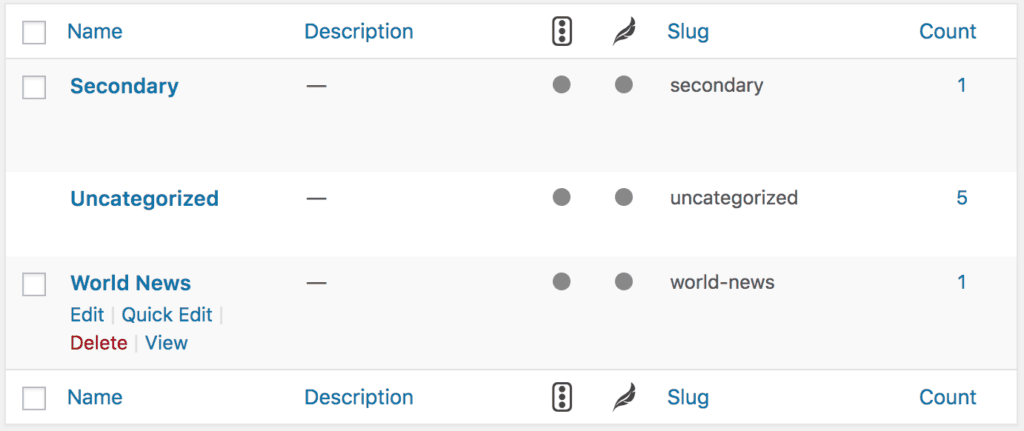
First, you need to go to Posts->Categories. You will see your category listed there:
List of categories
As you can see, the category we want to change is World News. If you notice at the right of World News row, there is field called slug. This is what displays in the URL of every posts of that category.
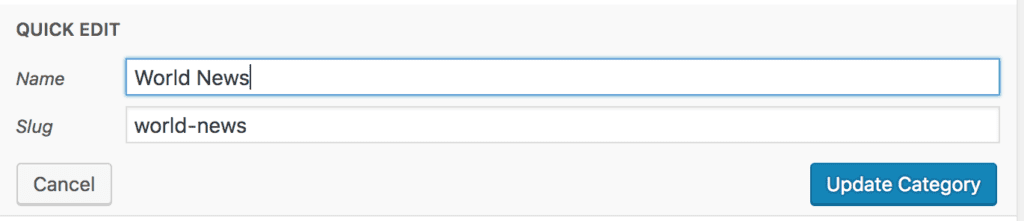
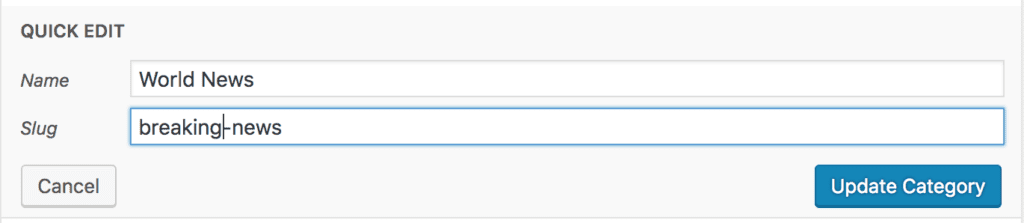
Now, if we want to change world-news to breaking-news, simply change the slug to breaking-news.
Step 1: Click on Quick Edit link under World News
Quick Edit category
Step 2: Change the slug to breaking-news.
Remember, you don’t need to change the name to Breaking News to update the URL. Changing the slug only is sufficient.
Step 3: Hit the Update Category button
Now, if I view the URL of the post mentioned at the beginning of the article, I can see the new category slug:
So, that’s how you change the category name in the URL. However, it is not recommended to change the URL of any pages/posts frequently because it will take time for search engines to update your new URL. After changing the URL, you also should do a redirect from the old url to the new URL to make sure when the visitors go to the old URL, they will get redirected to the new URL, not a 404 page.
Installing WordPress themes, plugins seems to be a simple task, even for beginner. However, due to the fact that there are many hosting providers out there and each of them have a different configuration, installing a new theme or plugin on your WordPress may not be straightforward.
Most of the time, you can install a theme or plugin by uploading the .zip file inside your site dashboard.
To install a plugin you may follow the following steps:
Go to Plugins->Add New
Click on Upload Plugin
Select your plugin .zip file and click on Install now
Wait for the installation process to complete and click on Activate Plugin
The same steps can be applied to installing a theme, though, there are some differences:
Go to Appearance->Themes
Click on Add new
Click on Upload Theme
Select your theme .zip file and click on Install now
Wait for the installation process to complete and click on Activate Theme
However, there is a very common problem WordPress users have when using this method is the hosting provider may put a limit on file upload size, which, less than the size of the plugin’s or theme’s zip file.
For example, your host has a 2MB limit on file upload and your theme zip file is 3MB.
In this case, uploading the theme inside your dashboard will result in a failure.
Fortunately, if your host have CPanel, you can install the plugin/theme easily.
How to install WordPress plugins/themes using CPanel
What are the benefits of installing plugins, themes using CPanel?
The biggest benefit is you don’t have to worry about upload file limit. Secondly, you can upload a zip file and then extract in on your site later. This feature can save you a lot of time in comparison to using FTP. When uploading the plugins/themes via FTP, you cannot upload a zip file then upload in the FTP client. If you install the plugin/theme using FTP, you need to extract it first before uploading. If your theme/plugin has a lot of files (even though they may be small), you will have to wait for a very long time.
Now let’s get started with installing plugins/themes using CPanel
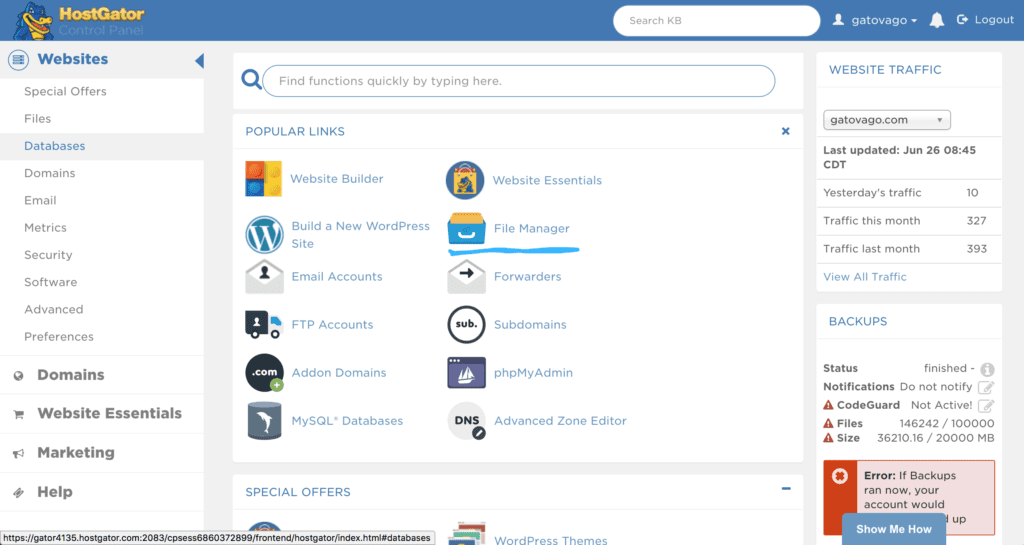
Step 1: Login to your CPanel
The first thing is to to login to your CPanel. In the image below, I’m in HostGator CPanel. Your CPanel dashboard may look a bit different if your CPanel version is different than mine. However, you will have no problem finding File Manager. You can press Ctrl + F ( or Command + F if you are on a Mac) and type in “File Manager” to locate it.
Login to your CPanel and locate File Manager
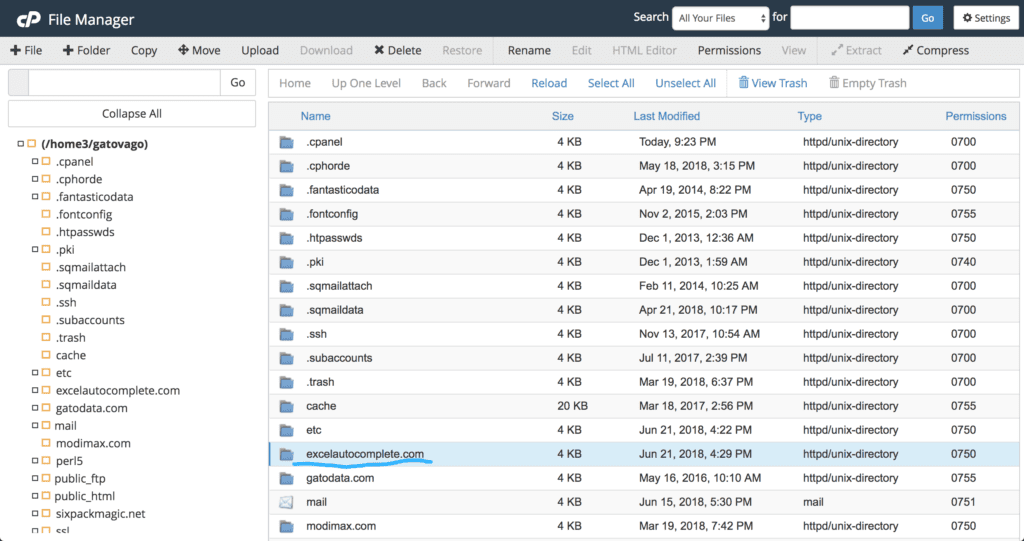
Step 2: Go to File Manager and locate your site’s folder
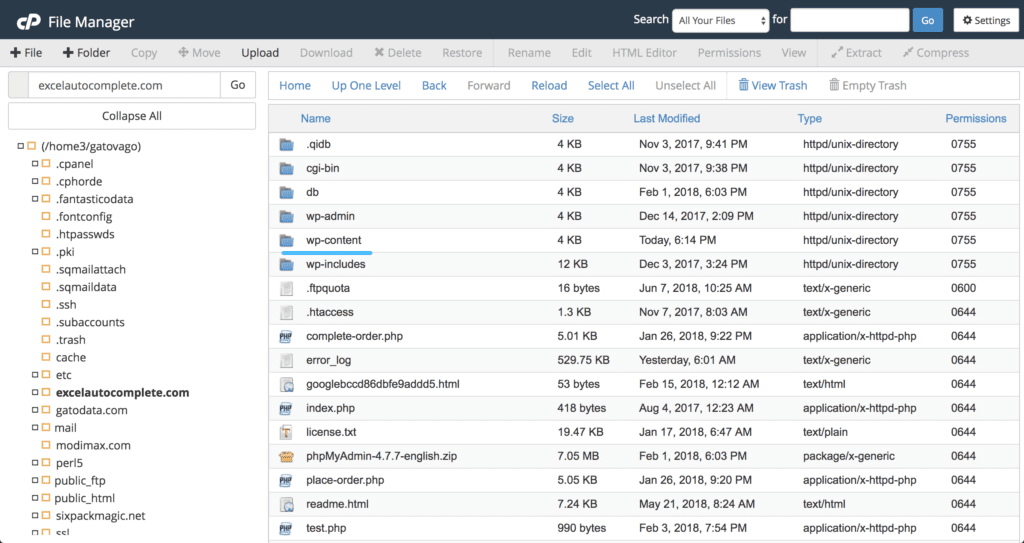
Your site’s folder usually have the same name as your domain name. In the picture below, I’m going to the folder of my site called excelautocomplete.com
Go to file manager and locate your site’s folder
Step 3: Go to wp-content/plugins or wp-content/themes
Now, if you double click on your site’s folder, you will see something similar to this. There are many files and folders but you only need to pay attention to one folder called wp-content
Locate wp-content folder
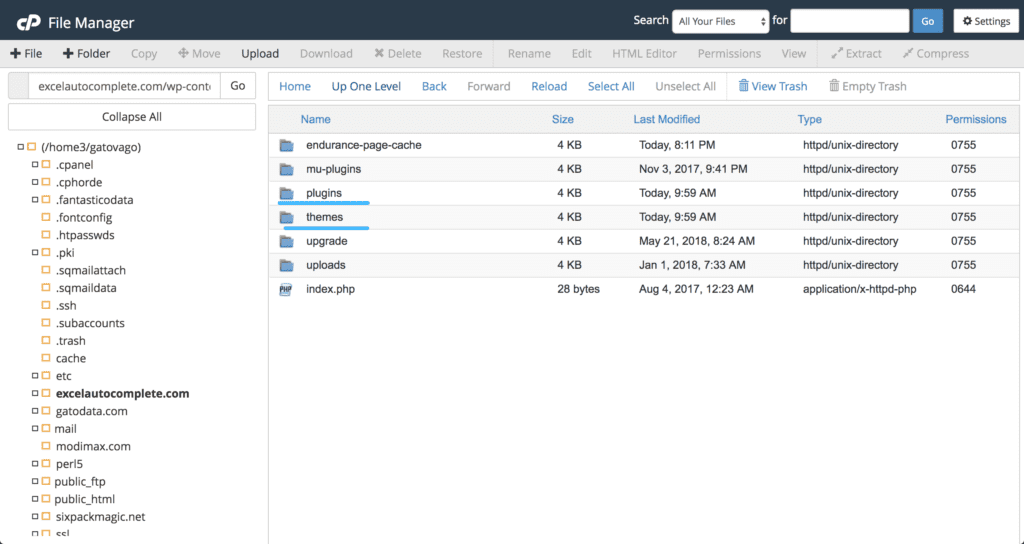
Double click on that folder you will see a list of folders. Here, you will see two folders with the following names:
themes
plugins
The names of those folders are self-explanatory. If you want to install a plugin, click on plugins folder. If you want to install a theme, click on themes folder. I’m going to install a theme so I’m going to click on the themes folder. You will see that there are one or more folders inside. The number of folders inside themes/plugins folder depends on the number of themes/plugin you have.
plugins and themes folder inside wp-content
Step 4: Upload your zip file
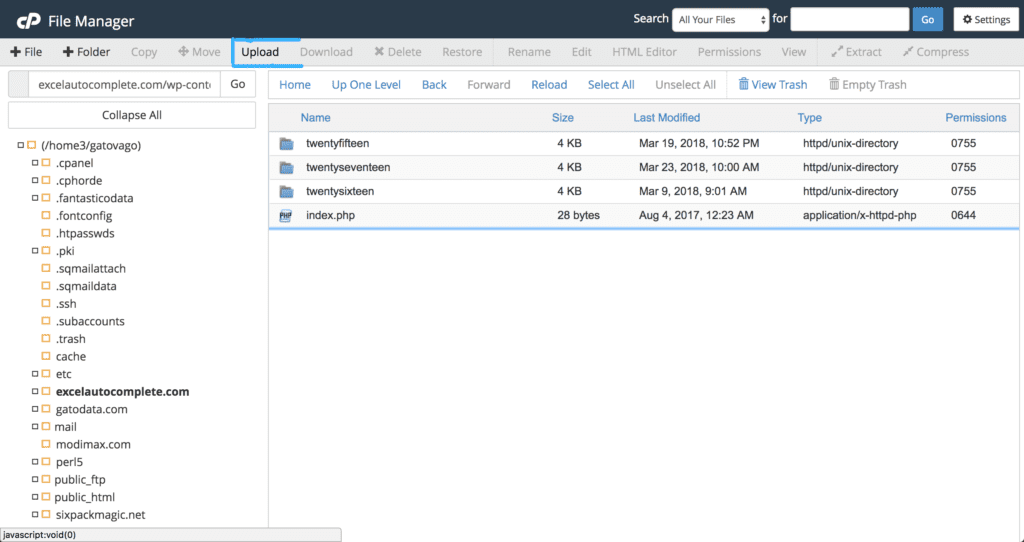
Now, I’m inside the themes folder. I can start uploading the theme zip file. Please make sure your theme is in a zip file. If you have extracted it to a folder, please compress it back to a zip file.
Now, click on the upload button in your CPanel
Start uploading theme zip file
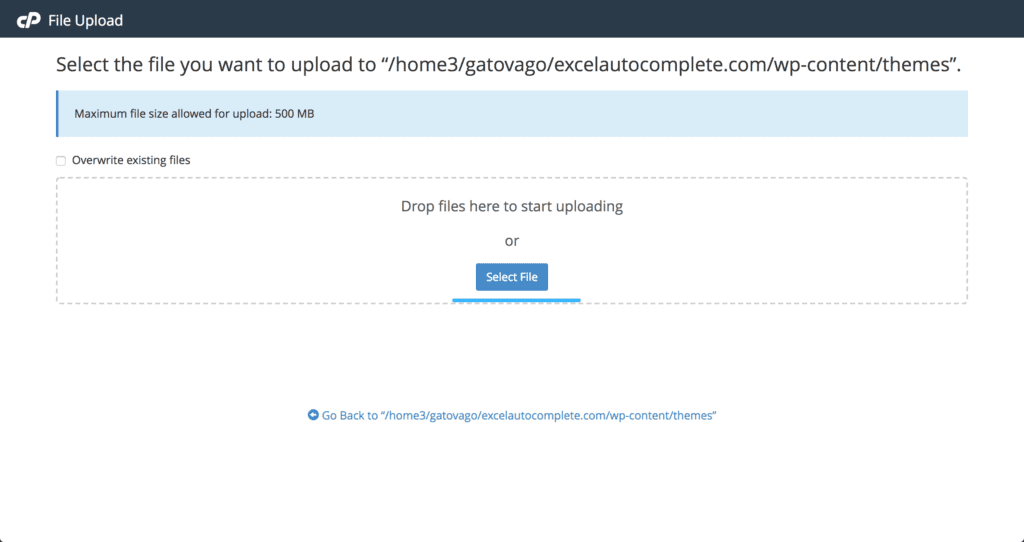
You will see a new tab opened:
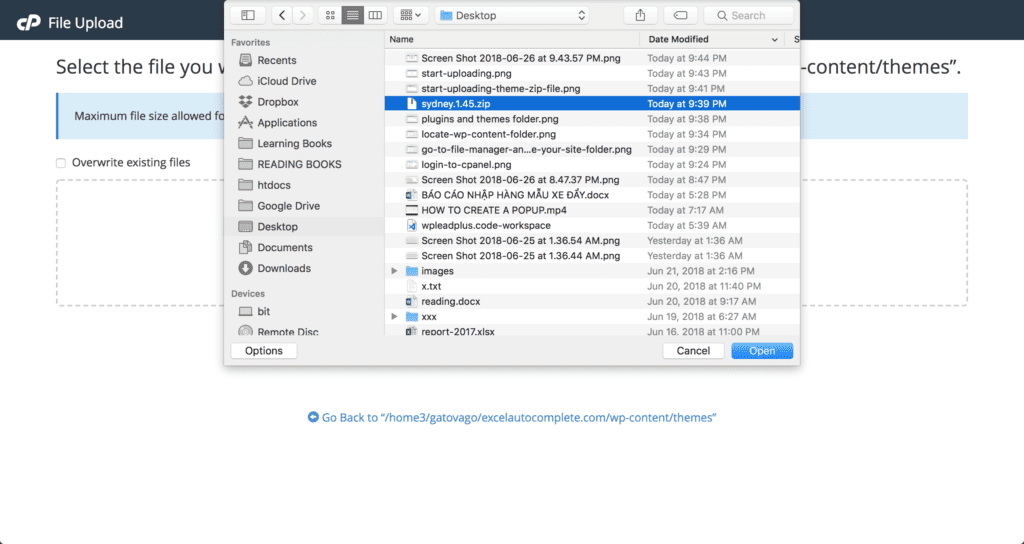
Select your zip file to start uploading
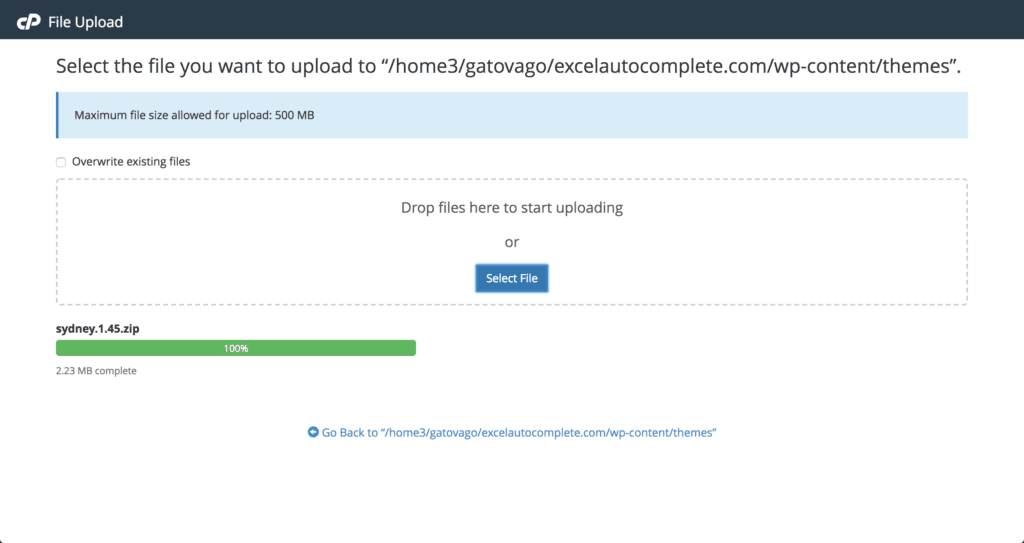
Now, select your theme .zip file and wait until the upload complete:
select theme file to upload
In this example, I’m select the theme sydney.
Upload theme complete
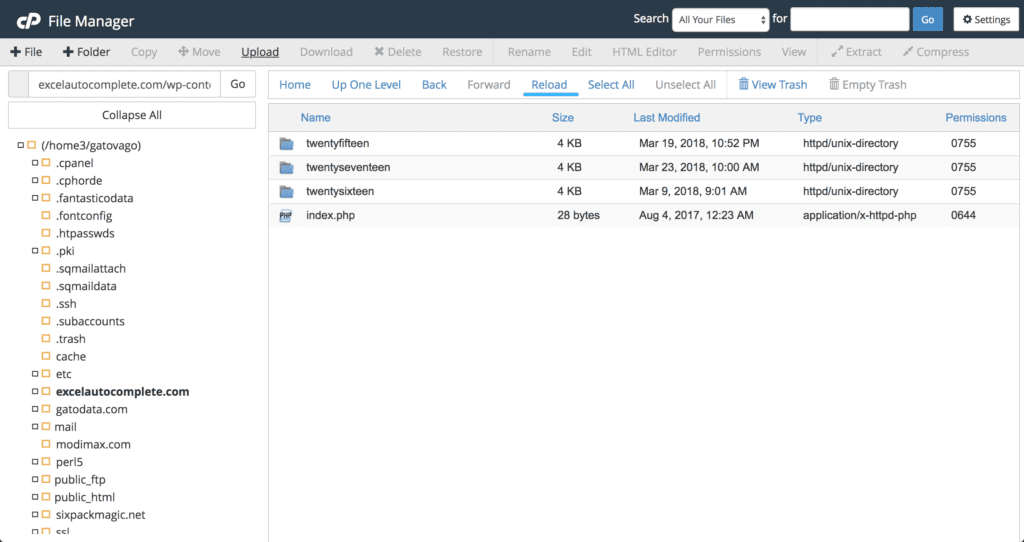
The upload is complete. Now, we go back to the theme folder and hit reload button to see the zip file:
Reload themes folder
After that, you should see the zip file appears
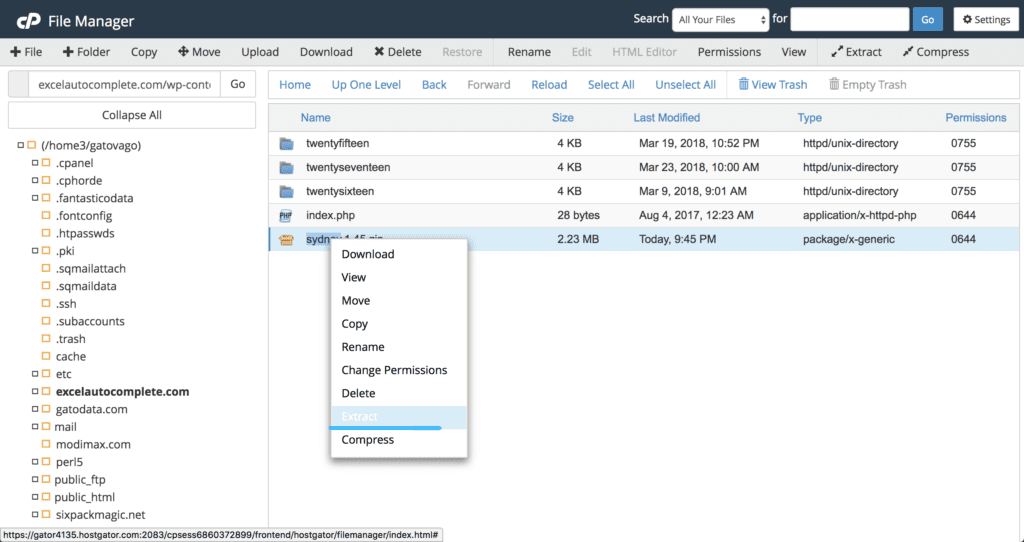
Step 6: Extract your zip file
We can now right click on the zip file to see the context menu and select the option to extract the file.
Extract the theme zip file
Wait until the decompression completes, now, if you click on the reload link, you will see your new theme folder appears:
You can (and should) delete the zip file. To do that, simply click on that file (single click) and select the delete action at the top.
Step 7: Go to your site’s dashboard to activate the plugin/theme
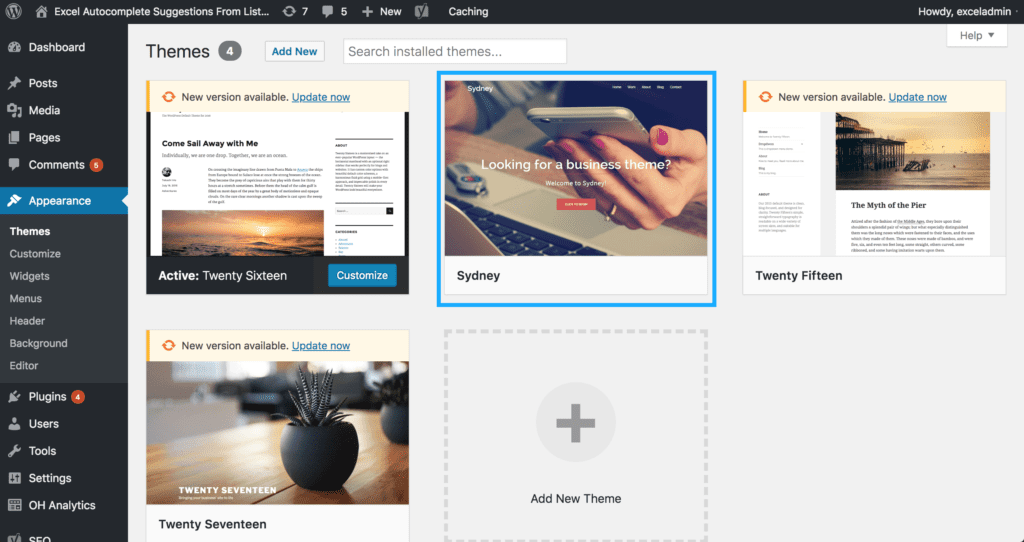
Now, your theme is installed. The last thing to do is to go to your dashboard and activate it. Go to Appearance->Themes. You will see the new theme appears:
New theme
You can hover on that theme and see the option to activate it:
Now, you have your new theme installed and activated. You can do the same with a plugin. However, instead of going to Appearance->Themes, you need to click on Plugins and find the new plugin in your list of plugins and click on Activate.
So, that’s how you install plugins/themes using CPanel. If you have any questions, please leave a comment below.
Thanks for reading!
We use cookies on our website to give you the most relevant experience by remembering your preferences and repeat visits. By clicking “Accept”, you consent to the use of ALL the cookies.
This website uses cookies to improve your experience while you navigate through the website. Out of these, the cookies that are categorized as necessary are stored on your browser as they are essential for the working of basic functionalities of the website. We also use third-party cookies that help us analyze and understand how you use this website. These cookies will be stored in your browser only with your consent. You also have the option to opt-out of these cookies. But opting out of some of these cookies may affect your browsing experience.
Necessary cookies are absolutely essential for the website to function properly. These cookies ensure basic functionalities and security features of the website, anonymously.
Cookie
Duration
Description
cookielawinfo-checbox-analytics
11 months
This cookie is set by GDPR Cookie Consent plugin. The cookie is used to store the user consent for the cookies in the category "Analytics".
cookielawinfo-checbox-functional
11 months
The cookie is set by GDPR cookie consent to record the user consent for the cookies in the category "Functional".
cookielawinfo-checbox-others
11 months
This cookie is set by GDPR Cookie Consent plugin. The cookie is used to store the user consent for the cookies in the category "Other.
cookielawinfo-checkbox-necessary
11 months
This cookie is set by GDPR Cookie Consent plugin. The cookies is used to store the user consent for the cookies in the category "Necessary".
cookielawinfo-checkbox-performance
11 months
This cookie is set by GDPR Cookie Consent plugin. The cookie is used to store the user consent for the cookies in the category "Performance".
viewed_cookie_policy
11 months
The cookie is set by the GDPR Cookie Consent plugin and is used to store whether or not user has consented to the use of cookies. It does not store any personal data.
Functional cookies help to perform certain functionalities like sharing the content of the website on social media platforms, collect feedbacks, and other third-party features.
Performance cookies are used to understand and analyze the key performance indexes of the website which helps in delivering a better user experience for the visitors.
Analytical cookies are used to understand how visitors interact with the website. These cookies help provide information on metrics the number of visitors, bounce rate, traffic source, etc.
Advertisement cookies are used to provide visitors with relevant ads and marketing campaigns. These cookies track visitors across websites and collect information to provide customized ads.






![[With Pictures] How To Install WordPress Themes, Plugins In CPanel Step By Step](https://www.binarycarpenter.com/wp-content/uploads/2018/06/pexels-photo-261662.jpeg)
![[With Pictures] How To Install WordPress Themes, Plugins In CPanel Step By Step 10](https://binarycarpenter.com/wp-content/uploads/2018/06/see-the-zip-file-1024x543.png)
![[With Pictures] How To Install WordPress Themes, Plugins In CPanel Step By Step 11](https://binarycarpenter.com/wp-content/uploads/2018/06/extracting-1024x545.png)
![[With Pictures] How To Install WordPress Themes, Plugins In CPanel Step By Step 12](https://binarycarpenter.com/wp-content/uploads/2018/06/close-extraction-window-1024x546.png)
![[With Pictures] How To Install WordPress Themes, Plugins In CPanel Step By Step 13](https://binarycarpenter.com/wp-content/uploads/2018/06/new-theme-folder-1024x544.png)
![[With Pictures] How To Install WordPress Themes, Plugins In CPanel Step By Step 14](https://binarycarpenter.com/wp-content/uploads/2018/06/option-to-activate-the-theme-1024x543.png)